

Shopify blog SEO is how you get your store's blog posts to rank in Google and show up in AI answers, then send those readers on to your products. Every Shopify store already has a blog built in, and most stores either leave it empty or fill it with posts nobody searches for. When the posts answer real buyer questions and link to the right collections, the blog becomes the part of your store that finds customers before they know which product they want.
This guide covers how Shopify's blog actually works, what it does and doesn't handle for SEO, how to pick topics and write posts that rank, how to structure blogs and tags, five real Shopify blog examples, and how blog templates work in current themes.
Before writing it we read the five guides that rank for Shopify blog SEO today, from Shopify, Blackbelt Commerce, Superblog, Promodo and Soda Web Media. All five cover titles, meta descriptions and alt text. None of the five mentions that Shopify creates a public archive page for every blog tag, and none explains how blog and article templates work in current themes. Both matter once a blog grows past a few dozen posts, so both get their own sections below.
How the Shopify blog works
You manage posts in the Shopify admin under Content > Blog posts. A new store comes with one blog called News, which lives at /blogs/news. You can add more blogs, and each blog gets its own address, so a store can run /blogs/guides and /blogs/recipes side by side.
Every post URL follows the same pattern: /blogs/blog-handle/post-handle. The /blogs/ part is fixed by Shopify and can't be removed. You control the blog handle and the post handle.
According to Shopify's help center, each post gives you these fields:
- Title, up to 255 characters. Your theme uses it as the post's H1.
- Content, written in the rich text editor, with images and embeds.
- Excerpt, the short summary shown on the blog's listing page.
- Featured image, used on the listing page and usually as the social share image.
- Tags, to group posts by subject.
- Author, which must be a staff or admin account on the store.
- Visibility. Posts are hidden by default, and you can publish now or schedule a date and time.
- Theme template, if your theme has more than one article layout.
- Search engine listing, where you edit the page title (70 characters recommended), the meta description (320 characters recommended) and the URL handle.
Shopify also adds every published post to your sitemap automatically, in a file called sitemap_blogs_1.xml that your main /sitemap.xml points to. Shopify's free Dawn theme prints Article structured data on each post using Shopify's structured_data Liquid filter, so Google gets the headline, date, author and image without an app. Other themes vary, so check yours.
Is Shopify's blog good for SEO?
Yes, for most stores. The posts live on your own domain, so every ranking and every backlink a post earns adds to the same site your products sit on. That is the main reason to use the built-in blog rather than a separate WordPress site on a subdomain.
It does have limits, and it helps to know them before you publish 200 posts.
| What Shopify handles for you | What you have to handle |
|---|---|
| Sitemap entries for every published post | Picking topics people actually search for |
| Editable page title, meta description and URL handle | Writing those fields instead of leaving the defaults |
| A redirect option when you change a handle | Ticking that box every time |
| Article structured data in Dawn and many other themes | FAQ or HowTo markup, which needs custom code or an app |
| HTTPS, hosting and a fast CDN | Image sizes, and apps that add scripts to every page |
| Tag archive pages | Keeping tags few and meaningful, since each one creates an indexable page |
The editor is basic compared to WordPress. There's no built-in table of contents, no reusable content blocks inside a post, and limited control over headings beyond what the rich text editor offers. None of that stops a post from ranking. It just means structure comes from how you write, and from templates, covered further down.
Choose blog topics that lead to sales
Product pages and collection pages rank for people ready to buy. The blog's job is to rank for the questions people ask earlier: how to choose, how to use, how to fix, what's the difference. A coffee brand's collection page targets "whole bean coffee". Its blog targets "whole bean vs ground coffee" and "how to use an Aeropress".
Build your topic list from four places:
- Your own store search. Shopify's analytics include a report called "Top online store searches with no results". Every term there is something a visitor wanted and couldn't find. Some are products to stock. Many are questions a blog post can answer.
- Support emails, reviews and returns. The same question asked by ten customers is usually being searched by thousands of people who never emailed you.
- Google Search Console. Filter the Performance report to pages containing
/blogs/and look at queries where you already get impressions at positions 8 to 30. Those are topics Google already connects to your store. - Keyword research tools and the search results themselves. Check volume, then search the term and look at what ranks. If the top results are product pages, a blog post won't win it. If they're guides and how-tos, it can.
Keep only topics with a clear next step into your catalog. "How to wash a wool sweater" works for a knitwear brand because the post can link to the sweaters and the wool wash. "History of wool" gets traffic that never turns into a sale. For a deeper look at the store-wide side of this, including category and product keywords, see our guide to SEO for an online store.
Optimize every Shopify blog post
Run through this list before you set a post to visible.
Title and H1
The post title becomes the H1, so put the main keyword in it, near the start, in words a person would say. "How to Clean Suede Boots Without Ruining Them" beats "Suede Care Tips". Then write a separate page title in the search engine listing if the full title runs past about 60 characters, so Google doesn't cut it off.
Meta description
Shopify fills this from your post content if you leave it empty, and the result is usually the first sentence cut mid-thought. Write your own. Say what the reader gets and include the keyword once. Shopify recommends up to 320 characters, but Google often shows around 150 to 160, so put the important part first.
URL handle
Shopify builds the handle from the title, which gives you long handles like how-to-clean-suede-boots-without-ruining-them-a-complete-guide. Shorten it to the keyword: how-to-clean-suede-boots. Do this before you publish. If you change the handle on a live post, tick "Create a URL redirect" so the old address sends people and link value to the new one.
Headings and structure
Use H2s for the main sections and H3s under them. Answer the main question in the first two or three paragraphs, then go into detail. Readers who land from Google want to know within seconds that the page answers their search, and AI tools that quote web pages pick up clear, direct answers far more easily than a long wind-up.
Images and alt text
Resize images before upload. A 4 MB photo from a camera slows the page for no reason. Write alt text that describes what's in the image, for example "brown suede Chelsea boot next to a suede brush", and add the keyword only when it genuinely describes the picture.
Excerpt, author and date
Write a one or two sentence excerpt so the blog listing page doesn't show an awkward auto-cut. Put a real person's name as the author where you can, since readers and Google both look for who wrote a how-to.
This short walkthrough shows where each of these fields sits in the Shopify post editor:
Link blog posts to products and collections
Internal links do two jobs on a Shopify blog. They pass authority from posts that earn links and traffic to the product and collection pages that make money, and they give the reader an obvious next click.
- Link product names to product pages the first time you mention them in a post.
- Link category words to collection pages. In a post about choosing running shoes, "trail running shoes" should point to that collection.
- Link related posts to each other, so a reader who finished "how to choose a tent" can move on to "how to pitch a tent in the wind".
- Link back from products to posts where the post helps someone decide, for example a sizing guide linked from the product description.
Use descriptive anchor text. "Our waterproof hiking boots" tells Google and the reader what's on the other side. "Click here" tells them nothing. Three to six internal links in a 1,500 word post is plenty. More than that and the important ones get lost.
If you use a Shopify SEO app to help with metadata or images, check what it does and doesn't do before relying on it. We compared the main options in our roundup of the best Shopify SEO apps.
Structure your blogs, tags and hub pages
One blog or several?
One blog is enough for most stores. Add a second blog only when the content is clearly different in purpose. A common split is one blog for brand news and one for buying guides and how-tos, so the helpful content isn't buried under launch announcements. Death Wish Coffee, for example, runs separate blogs at /blogs/news, /blogs/coffee-talk and /blogs/lifestyle.
Be careful with tags
This is the part the ranking guides skip. Every tag you add creates a public archive page at /blogs/news/tagged/tag-name. On the Shopify stores we checked, those pages carry a canonical tag pointing to themselves, which means Google treats each one as a page that can be indexed. Shopify's default robots.txt blocks combined tag URLs (the ones with a plus sign, like /tagged/food+japan), but it leaves single tag pages open to crawling. If you edit the robots.txt.liquid template, the free robots.txt generator is a quick way to draft the rules before you paste them in.
That is fine when a store has eight tags with ten posts each. It becomes a problem when every post gets five one-off tags, because you end up with hundreds of thin pages that each list one or two posts. Keep a fixed list of tags, around five to twelve, tied to your product groups or reader needs, and don't invent new ones per post.
Build hub pages for big topics
Dawn's blog listing page shows six posts per page, and older posts slide back to page 10, 20 or 30 where few people or crawlers reach them. Fix that with hub posts: one page per major topic that introduces it and links to every related post. Beardbrand does this with a category page for each of its nine topics, so no article is more than a couple of clicks from the blog's front page.
Shopify blog examples worth copying
We opened each of these in a browser on 14 September 2026 and confirmed they run on Shopify with a /blogs/ URL. Each one shows a different way to use the built-in blog.
1. Beardbrand: a large blog organized into category hubs
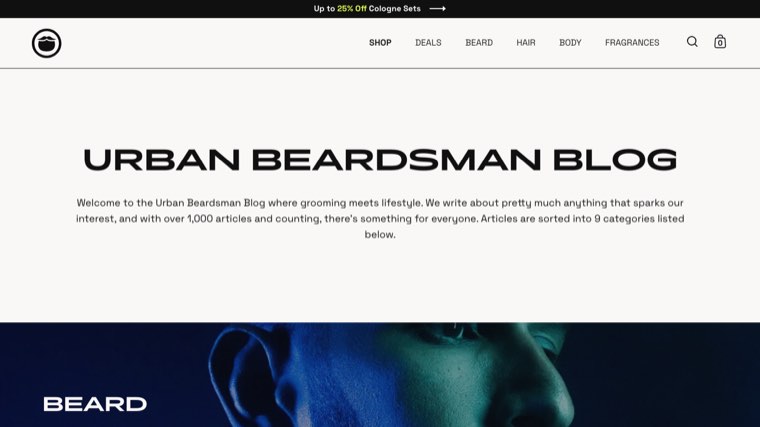
The Urban Beardsman blog says it holds over 1,000 articles, sorted into nine categories: beard, mustache, hair, body, personal growth, lifestyle, from the founder, product guides and beardsman profiles. Each category has its own page under the blog, such as /blogs/urbanbeardsman/beard-articles. Recent posts target clear searches like "top ways to use beard balm" and "how to grow long hair". What to copy: the hub page per topic, which keeps a very large archive easy to crawl.
2. Death Wish Coffee: how-to posts next to the product
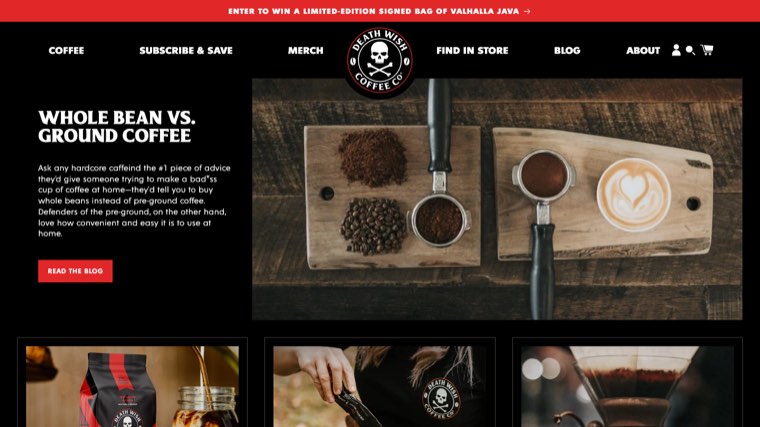
Death Wish Coffee's posts are the questions coffee buyers search: how to use an Aeropress, what instant coffee is, why brew in a Chemex, whole bean vs ground coffee. Each one sits a click away from the coffee itself. The brand also runs community posts and giveaways in a separate blog. What to copy: brewing and usage how-tos that match what you sell, kept apart from brand news.
3. Bokksu: comparison posts and a small, fixed tag list
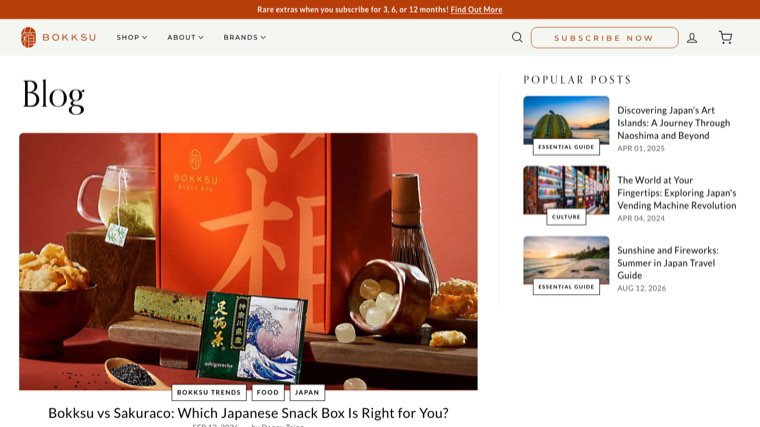
Bokksu, a Japanese snack subscription, publishes "Bokksu vs Sakuraco: Which Japanese Snack Box Is Right for You?", a comparison against a competitor on its own blog. That page catches people searching both brand names at the moment they're deciding. The blog uses a short set of tags (Food, Japan, Culture, Essential Guide, Japanese Desserts, Bokksu Trends) and adds Japan travel guides that bring in readers interested in the culture behind the products. What to copy: honest "us vs them" posts, and tags you reuse instead of inventing.
4. Brooklinen: two blogs with different jobs
Brooklinen splits its content into two Shopify blogs. Brookliving carries lifestyle and buying posts such as "Pillow Perfection: The Best Style for Every Sleeper" and "Natural Selections: The Benefits of Organic Bedding", and runs to 28 listing pages. A separate Education Center blog holds the reference content. What to copy: separating evergreen reference content from seasonal and lifestyle posts, so the reference pages stay easy to find.
5. Allbirds: a blog used for press releases
Allbirds uses /blogs/news mostly for press releases, such as its Pantone partnership for the Canvas Cruiser and the launch of its waterproof wool sneakers. That suits a brand whose name people already search, since those posts serve journalists and fans. For a smaller store it is the pattern to avoid: announcements rarely match anything people type into Google. What to learn: decide who the blog is for before you pick topics.
Shopify blog templates
People searching "Shopify blog template" usually mean one of two things: a theme with a nicer blog layout, or a way to give different posts different layouts. Both are handled in the theme.
In current Shopify themes (Online Store 2.0, which includes Dawn), the blog uses two templates. blog.json controls the listing page that shows all posts, and article.json controls a single post. You edit both in the theme editor under Online Store > Themes > Customize, by picking Blogs from the page selector at the top.
You can also create extra article templates. In the theme editor, open the page selector, choose Blog posts, and create a new template, for example one called "buying-guide". Shopify saves it as article.buying-guide.json. You then add sections to it, and Dawn includes a Featured product section and a Featured collection section you can drop in. After that, any post can use the layout by selecting it in the Theme template field of the post editor.
Three templates cover most stores:
- Default article for how-tos and guides: the post, the author, and related posts.
- Buying guide with a featured collection section at the end, so readers who finished comparing can shop the range.
- Recipe or tutorial with a featured product section near the top for the one product the post is built around.
Sections added to a template sit outside the post body, so they appear on every post using that template without editing each one.
Technical checks for Shopify blog SEO
- Check indexing. Connect Search Console, submit
/sitemap.xml, and use URL Inspection on a few posts. A post that isn't indexed after a few weeks usually has thin content, or no internal links pointing to it. - Watch app scripts. Review apps, pop-ups and chat widgets often load on blog pages too. Test a post in PageSpeed Insights, then remove what isn't earning its place.
- Keep redirects clean. Every handle change needs a redirect. Shopify allows up to 100,000 URL redirects on standard plans, so you won't run out, but broken chains still waste crawls.
- Avoid duplicate posts. Two posts targeting the same question compete with each other. Merge them into the stronger one and redirect the weaker URL.
- Don't block AI crawlers by accident. Shopify's default robots.txt has no rules for AI crawlers such as GPTBot or PerplexityBot, so they can reach your blog. If you or an app edited
robots.txt.liquid, check that the blog is still open to the tools you want to be cited by.
Measure and update your posts
In Search Console, open Performance, add a page filter for URLs containing /blogs/, and compare the last three months with the three before. Then work through three lists:
- High impressions, low clicks. The post ranks but the title doesn't earn the click. Rewrite the page title and meta description.
- Positions 8 to 20. Close to page one. Add the subtopics the top results cover and you don't, add a few internal links from related posts, and update the date only when the content actually changed.
- Queries you never targeted. A post about suede boots that gets impressions for "how to waterproof suede" needs a section on it, or a new post if the intent is different.
In Shopify analytics, look at sessions that land on a blog post and go on to view a product. A post with good traffic and no product views usually needs a better link placement, not a new topic.
Running your Shopify blog on autopilot
Everything above works. It also takes time most store owners don't have: researching keywords, writing posts that answer them properly, linking each post to the right products, filling in the search listing, and doing it every week for a year.
Distribb runs that on autopilot. Connect your Shopify store and it pulls in your product catalog, finds the searches your buyers make before they purchase, and writes articles around the products you actually sell, with your real prices and links to your product and collection pages. It publishes them straight to your Shopify blog through the official Admin API, with the meta description, alt text and tags filled in. It then builds backlinks from real businesses and tracks whether ChatGPT, Perplexity and Google's AI answers mention your store. You can read posts as drafts first if you like, but nothing waits on you.
Pro is $97 a month. Accelerator is $495 a month and adds a human editor who reviews every piece before it goes live. Agencies white-label Distribb for their Shopify clients, so a store can also go straight to the source. You can see what Distribb runs for ecommerce brands.
The honest limit: Distribb is a platform, not a bespoke creative agency. If you want a photographer shooting custom lifestyle images for every post, that's still a separate job.
FAQ
Does Shopify have a blog?
Yes. Every Shopify store includes a blog at no extra cost. You'll find it in the admin under Content > Blog posts, and new stores start with a blog called News at /blogs/news. You can create more blogs whenever you need them.
Is the Shopify blog good for SEO?
Yes. Posts live on your own domain, get added to your sitemap automatically, and let you edit the page title, meta description and URL handle. Its weak spots are a basic editor, the fixed /blogs/ URL prefix and indexable tag pages, and none of those stops a well-written post from ranking.
Can I remove /blogs/ from Shopify blog URLs?
No. Shopify fixes the /blogs/blog-handle/post-handle structure. You can shorten the blog handle and post handles, but the prefix stays. It doesn't hurt rankings.
How often should a Shopify store publish blog posts?
Publish as often as you can do each post properly. One useful post a week on topics tied to your products beats daily thin posts. What matters most is consistency over months, plus going back to update posts that sit just off page one.
Should I host my blog on WordPress instead of Shopify?
For most stores, no. A blog on a subdomain like blog.yourstore.com builds authority for that subdomain rather than your main store, and adds a second system to maintain. Shopify's built-in blog keeps everything on one domain with your products.
How many tags should a Shopify blog have?
Keep a fixed list of roughly five to twelve tags that match your product groups or reader needs. Each tag creates its own archive page that Google can index, so dozens of one-off tags produce a pile of thin pages.
Where can I find Shopify blog templates?
Your theme already includes them: blog.json for the listing page and article.json for posts. You can create alternate article templates in the theme editor and assign them per post with the Theme template field. Themes in the Shopify Theme Store also ship their own blog layouts.
Conclusion
Shopify blog SEO comes down to a few habits: write posts that answer questions your buyers search, fill in the search listing every time, link each post to the product or collection it supports, keep tags few, and build hub pages as the archive grows. Start with one product group and its ten most common questions, publish those posts over the next month, then check Search Console and improve whatever sits just off page one.