

SEO browser extensions put useful page and search data where you need it: right in your browser. But no single add-on covers every task well. These seven picks handle different jobs, from checking a page’s metadata to reviewing local search results.
1. MozBar: quick SEO metrics while you browse
MozBar adds SEO metrics to pages and search results, so it’s a good fit for quick competitor checks. Its free tier works with Chrome and Firefox, which makes it one of the more flexible picks for teams that don’t all use the same browser.
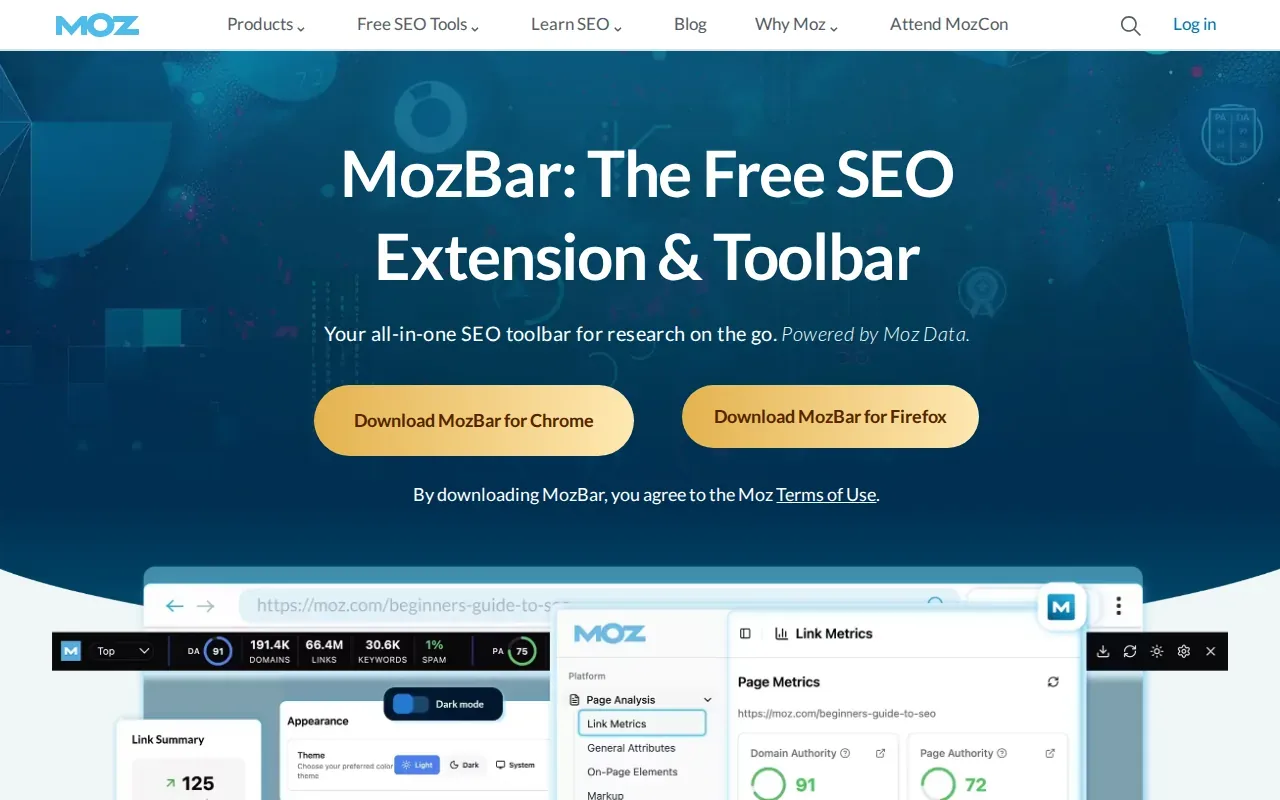
On a Google results page, its SERP mode can show Domain Authority and Page Authority beside results. These are Moz metrics that estimate a domain’s or page’s ability to rank. They’re useful for quick comparisons, but they aren’t Google scores or a promise that one page will outrank another.
That distinction matters when you’re sizing up a search result. If one competing page has a higher metric, treat that as a clue to investigate its links and content, not as a reason to abandon a keyword. A quick browser check should guide the next question, not settle the whole strategy.
MozBar also gives you page-level information, including titles, meta descriptions, headings, canonicals, and HTTP status. Its link-highlighting feature can help you see internal and external links while browsing. Some advanced features require a Moz Pro subscription, so check what’s included before relying on them for a regular workflow.
For link research, a toolbar can help you spot pages worth reviewing. Turning those findings into a repeatable acquisition process is a separate task. Distribb.io’s backlink exchange is one option to review if link building is part of your wider SEO work.
Pick MozBar when you want a fast, familiar read on a page or SERP. Don’t treat its authority metrics as a ranking verdict.
2. Keyword Surfer: keyword ideas and volume in Google results
Keyword Surfer adds search volume and related keyword ideas to Google results. It suits writers and SEO staff who need a quick way to explore a topic before opening a larger research tool.
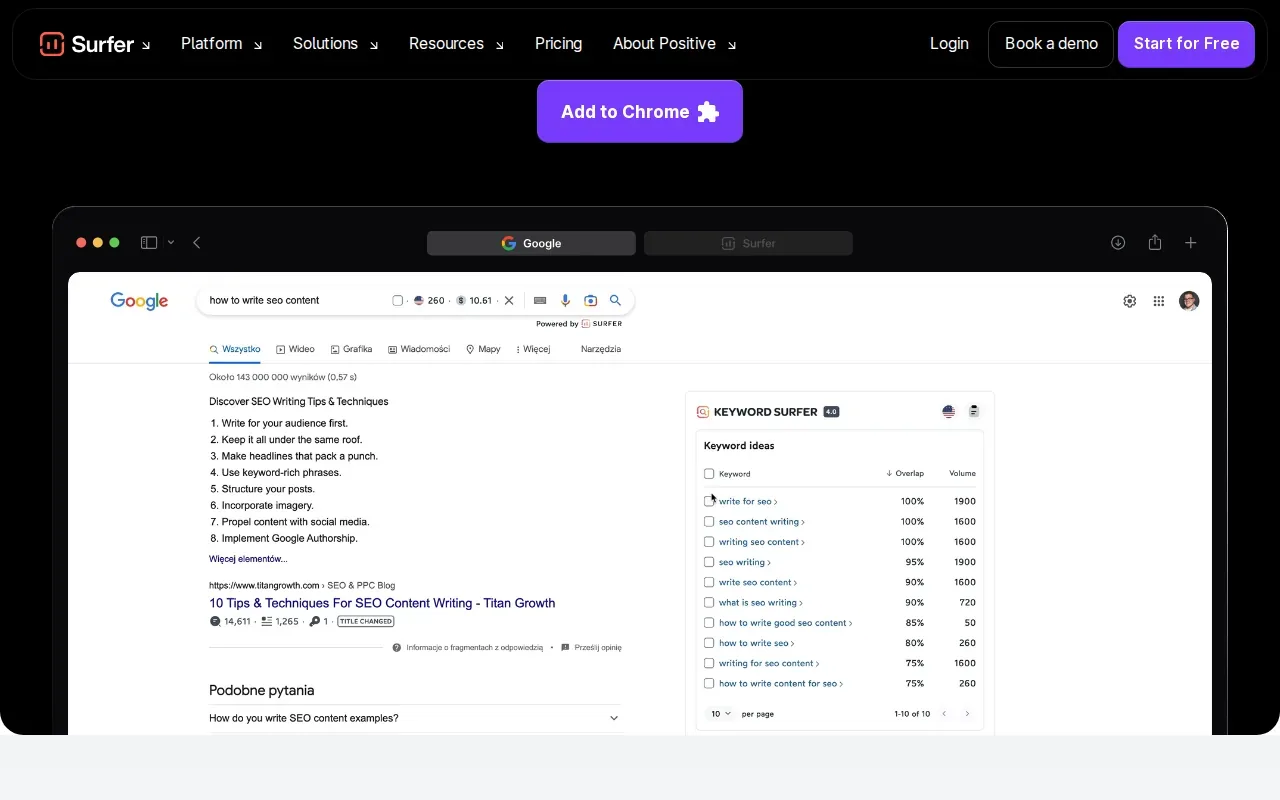
Search for a phrase and the extension can show volume estimates for that query and related terms. You can choose a location for the data, which helps when a page targets a specific market. The extension also shows how much overlap there is between the organic results for related phrases. That can help you judge whether two terms may fit one page or need separate content.
For example, a writer researching a product topic can scan the suggested terms and note questions or related phrases that belong in the brief. The data is there while the writer is already looking at search results, so it’s handy for early discovery. It doesn’t replace checking whether a phrase matches the page’s goal or the audience’s needs.
Keyword Surfer is free and doesn’t require a Surfer account for basic use. It’s available for Chrome and often Firefox. Data is available for many locations. That’s useful for an initial check, but search volume estimates are still estimates, not a promise of traffic.
Some features are tied to a paid Surfer plan. Some advanced features require an active plan. Keep the free keyword research use separate from any paid features when deciding whether it fits your team.
Use it to find terms worth checking further. Then validate the topic and intent before adding it to a content plan.
3. SEO META in 1 CLICK by SEO Extension: a fast page overview
SEO META in 1 CLICK by SEO Extension gives you a quick view of key page details. It’s best for editors and SEO reviewers who need to check what’s present without digging through source code.
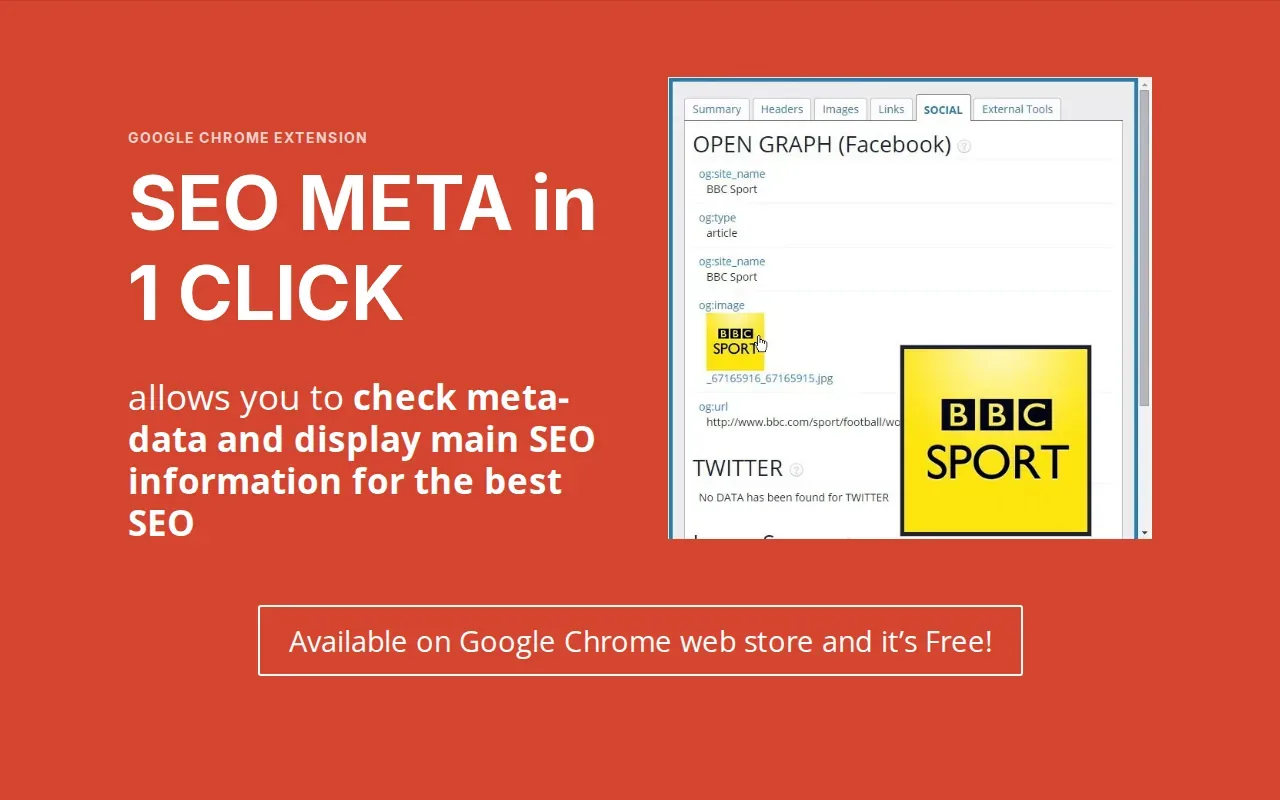
The panel can show a page title and its length, the meta description, the canonical URL, and the robots directive. It also lays out headings in the order they appear in the page. That makes it easy to spot a missing main heading or a heading sequence that deserves a closer look.
It includes counts for images with and without alt text. It can also show link counts and social metadata, such as Open Graph and Twitter data. These checks are useful during a page review: an editor can confirm that the main metadata is present before handing a page back to a developer or content lead.
The extension also links to a site’s robots.txt file and sitemap.xml. Those shortcuts help you reach common files quickly, but they don’t tell you whether every directive or sitemap entry is correct. Treat the overview as a way to find items to inspect, not as a full technical audit.
SEO META in 1 CLICK by SEO Extension is a Chrome pick. If your team uses Firefox, this one may not fit every person’s setup. That browser limit is worth checking before you standardize a review checklist around it.
Choose it when you want a quick, broad snapshot of what’s on one page. For deeper technical checks, pair it with a focused inspector rather than expecting one panel to catch every issue.
4. Detailed SEO Extension: a clean on-page inspection
Detailed SEO Extension is a free on-page inspector for Chrome and Firefox. It’s a strong fit for people who often need to check titles, meta data, canonicals, headings, or schema while reviewing a live page.
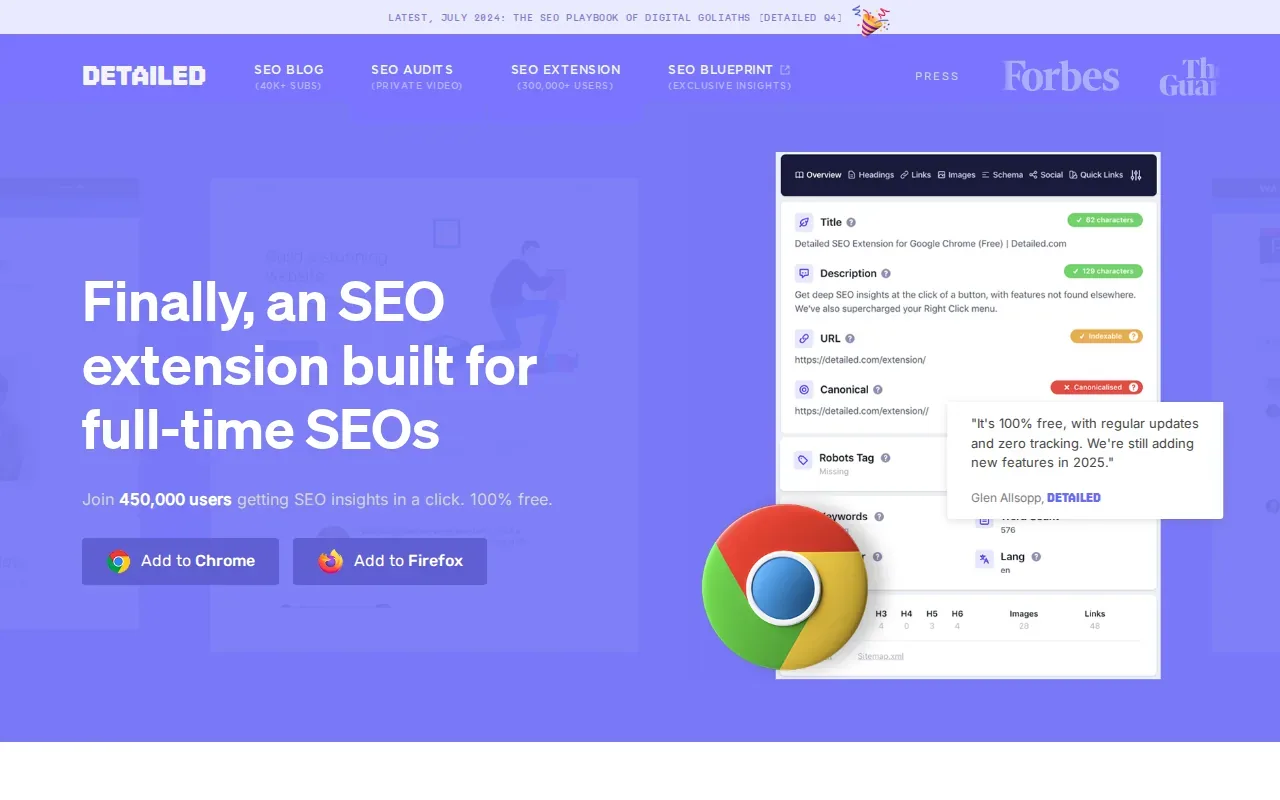
Its layout brings common page signals together in one place. That can save time when you’re reviewing a landing page or checking a competitor’s page structure. The extension also shows schema markup when a page uses it, so you can inspect what’s present without opening a separate testing tool first.
For a content audit, the headings view can help you spot a page that jumps between heading levels or repeats a heading. The extension can also show hreflang references and their status codes, which is useful when reviewing pages aimed at different language or regional audiences.
Other tools include a quick view of page links and images, along with a way to highlight nofollow links. You can also extract People Also Asked questions from search results. Those details can support a review, but the extension doesn’t replace a crawl when you need to assess a whole site.
Its free access makes it useful for a shared audit routine, especially if the team needs a quick second look before publishing. Use it to flag questions for the page owner. Confirm any technical change in the page or site system where the fix will actually happen.
If your main task is checking on-page elements, this is a tidy daily option. If you need reports across many URLs, use it as a spot-check tool rather than a sitewide audit platform.
5. Ubersuggest by Neil Patel: keyword and competitor insights
Ubersuggest by Neil Patel adds keyword and site estimates to browser searches. It’s best for smaller teams that want a quick read on a search phrase or competing domain without starting in a large dashboard.

On Google, the extension can show keyword volume, cost-per-click estimates, and competition data. It can also surface related and long-tail keyword ideas. The extension supports searches on Google, YouTube, and Amazon, so a team can look at query suggestions across more than one kind of search page.
When you visit a domain, clicking the extension icon gives a quick view of estimated traffic, top pages, and keywords. That can help an SEO analyst decide which pages deserve a closer look. A traffic estimate is not the same as a site’s private analytics, so use it to form a question rather than report it as confirmed traffic.
The tool also shows backlink details and competitor insights. In search results, the data can help you compare the sites appearing for a term. Location and language settings let you adjust the view to match the market you’re researching.
The extension is for Chrome.
Use Ubersuggest when you need a quick domain or keyword snapshot. For decisions about content investment, pair the estimate with your own search and site data.
6. Redirect Path by Ayima: redirects and response headers
Redirect Path by Ayima checks redirects and response headers in Chrome. It’s for technical SEOs, developers, and site owners who need to see what happens when a page loads.
The extension can identify common status codes, including 301, 302, 404, and 500. It also displays response headers. That makes it useful when a page seems to land somewhere unexpected or returns an error, and you want an initial clue without opening a separate diagnostic tool.
Consider a URL change during a site update. You can visit the old URL and check whether it redirects as expected. If the page returns a 404 or a server error, you have a clear starting point for a ticket to the web team. For a longer redirect path, the response details can help narrow down where to investigate.
Redirect Path is deliberately focused. It won’t tell you whether a keyword is worth targeting or whether a page’s headings are well arranged. That narrow scope is useful when you’re doing a technical spot check, but it means you’ll need another tool for content or keyword work.
Use it during a migration review or when someone reports a broken page. Keep a note of the exact URL and the status you saw, then confirm the fix after the site team changes the route.
7. GMB Everywhere: Google Business Profile and local SEO checks
GMB Everywhere adds local SEO checks to Google Search, Maps, and Local Finder. It’s best for local SEO teams that review Google Business Profiles and compare businesses in a specific area.
The extension can show business categories and mark the primary category. It also includes profile audits, category data, rank checks, and local listing analysis. Those checks can help an agency review whether a business’s profile details line up with the local search work it’s doing.
Its location features matter because local search results can vary by where the search happens. GMB Everywhere’s Teleport feature lets users select a term and location to check rank in that place. Local Scan supports side-by-side comparison of businesses in search results, including category and review comparisons.
Here’s how its key checks fit into a local review:
| Task | What to inspect | Best use |
|---|---|---|
| Category review | Business categories, including the primary category | Check how a profile is categorized against nearby competitors |
| Profile audit | Basic profile details and location information | Spot items that need a closer look during an account review |
| Local rank check | A search term at a chosen location | Compare visibility in a specific area |
| Listing comparison | Category and review details across results | Find differences to investigate with the business owner |
The free tier is limited to category lookups on Maps. Other functions may have different access rules, so check the current terms before planning a team workflow. The extension also says it doesn’t export Google Maps data. Keep that limit in mind if your process depends on moving listing data into another system.
For a local campaign, use the category and location checks to spot questions for the business owner. Don’t treat a single location check as a full picture of visibility across every neighborhood.
Browser checks are useful for research, but they don’t run a wider content and publishing workflow. Distribb.io is a separate option for businesses and agencies that want to automate SEO work beyond a browser tab. You can review its pricing and platform details to see if that wider workflow fits.
FAQ
What are the best SEO browser extensions for beginners?
For basic checks, start with one extension that matches your most common task. Keyword Surfer can help you explore phrases in Google results, while SEO META in 1 CLICK by SEO Extension gives a quick page overview. SEO browser extensions are easier to learn when you add them one at a time and keep only the ones you use.
Are SEO browser extensions free?
Some SEO browser extensions have a free tier, but features and limits vary. MozBar and Keyword Surfer have free access, while some advanced features across tools may require a paid plan. Check the extension’s current listing before you depend on a feature, especially if you’re setting up a shared team process.
Can browser extensions replace an SEO platform?
No, browser extensions are best for quick checks on the page or results you’re viewing. They can help with a single URL, query, or local listing, but that isn’t the same as monitoring a whole site over time. Use them for fast inspection, then rely on your wider reporting and crawl tools for site-level decisions.
Do SEO browser extensions slow down Chrome?
They can add browser work, especially if many extensions run at once or change search pages. Keep only the add-ons you use, and disable one if pages feel slow or search results become cluttered. A small set of focused SEO browser extensions is usually easier to manage than installing every tool you find.
Which SEO extension should I use for local SEO?
GMB Everywhere is the pick on this list for Google Business Profile and local checks. It can show categories and support location-based rank checks. The free tier is limited to category lookups on Maps, so confirm access to any other feature you plan to use before setting a recurring local audit routine.
Conclusion
Choose one extension for the task you repeat most, then add another only when a clear gap remains. If browser checks are only one part of your SEO workflow, review Distribb pricing and see whether its broader automation fits your team. Start your Free Trial.