

A Googlebot simulator shows you what Google's crawler receives when it requests one of your pages: the status code, the HTML, the links, the robots directives and the text. You use one when a page looks fine in your browser but will not index, drops out of the results, or shows the wrong title in Google.
The short version: the only tool that uses the real Googlebot on your own site is URL Inspection in Google Search Console. Everything else, including every free "Googlebot simulator" online, sends Googlebot's user agent from somebody else's servers. That is useful, and fast, but it is not the same thing. Below are the four methods we use, tested in late October 2026, with what each one can and cannot tell you.
The short answer: which method to use
Pick the method by what you can access and what you need to see.
| Method | Real Googlebot? | Runs JavaScript? | Works on sites you don't own? | Needs an account? |
|---|---|---|---|---|
| URL Inspection (Search Console) | Yes (Google-InspectionTool) | Yes | No, verified sites only | Yes |
| Rich Results Test | Yes (Google's own fetcher) | Yes | Yes | No |
| Free online simulators | No, user agent only | Depends on the tool | Yes | Usually no |
| curl or a browser with the Googlebot user agent | No, user agent only | curl no, browser yes | Yes | No |
If it is your site, start with URL Inspection. If it is not your site, or you need an answer in ten seconds, run the Rich Results Test or a free simulator. Use curl when you want to compare the exact bytes a server sends to Googlebot with what it sends to a browser.
What a Googlebot simulator does, and what it cannot do
Googlebot is the name for two crawlers: Googlebot Smartphone and Googlebot Desktop. Google says in its Googlebot documentation that most sites are indexed on the mobile version, so most crawling is done by the smartphone crawler. A simulator sends a request with the same user agent string, for example:
Mozilla/5.0 (Linux; Android 6.0.1; Nexus 5X Build/MMB29P) AppleWebKit/537.36 (KHTML, like Gecko) Chrome/W.X.Y.Z Mobile Safari/537.36 (compatible; Googlebot/2.1; +http://www.google.com/bot.html)
Then it shows you the response: headers, HTML, title, meta robots, canonical, headings, links and visible text. Good ones also apply your robots.txt and render the page in a headless browser.
What none of them can do is come from Google's IP addresses. Plenty of sites, and most bot protection services, check that a visitor claiming to be Googlebot really comes from Google. If it doesn't, they block it. So a simulator can be refused by a site that serves the real Googlebot perfectly. We saw this on three big sites in our own test (results in method 3).
The other gap is rendering. Google crawls a page, queues it, renders the JavaScript later, then indexes the rendered result, as its JavaScript SEO basics page explains. A simulator that only fetches HTML shows you the first step. That is often exactly what you want, because it is also what most AI crawlers see, but it will not show content that only appears after scripts run.
Method 1: URL Inspection in Search Console
URL Inspection replaced the old "Fetch as Google" feature. It is the one place where Google itself fetches and renders your page on request and tells you whether it can be indexed. You need the site verified in Search Console.
Run a live test
- Open Search Console and pick the property.
- Paste the full URL into the "Inspect any URL" bar at the top and press Enter. You now see the indexed version: whether the page is on Google, the canonical Google chose, and when it was last crawled.
- Click Test live URL. Google fetches the page now, with its current code. The page has to be reachable from the internet without a login.
- Click View tested page. A panel opens with three tabs: HTML (the rendered code), Screenshot (what the renderer saw), and More info (HTTP response headers, page resources that could not be loaded, and JavaScript console messages).
Indexed result versus live result
You can switch between the indexed result and the live test. If the live test is fine but the indexed result shows an old title, a noindex or a different canonical, you fixed the problem after Google's last crawl and it just has not come back yet. If the live test shows the problem too, it is still there.
Request indexing after a fix
Once the live test is clean, click Request indexing. The page goes into the priority crawl queue. There is a daily quota, so use it on pages you changed, and submit a sitemap for anything in bulk. Our guide to how long Google takes to index a page covers what to expect after that. Google's URL Inspection help page lists every field in the report.
Method 2: Free Googlebot simulators (we tested them)
Online simulators are the fastest way to check a page, and the only option for a page on a site you cannot verify. In late October 2026 we ran the free ones that rank for "googlebot simulator" on real URLs. Two worked, two did not.
Distribb Free Googlebot Simulator
Our own free Googlebot simulator fetches a URL with Googlebot's user agent, follows redirects, and lays out the status, response time, size, word count and links, then a list of flags: noindex, missing canonical, missing meta description, images without alt text, thin text and anything robots.txt blocks. It does not run JavaScript, on purpose: it shows the raw response a crawler gets before rendering. The limits are 20 fetches an hour, public pages only, 2 MB and 10 seconds per fetch.
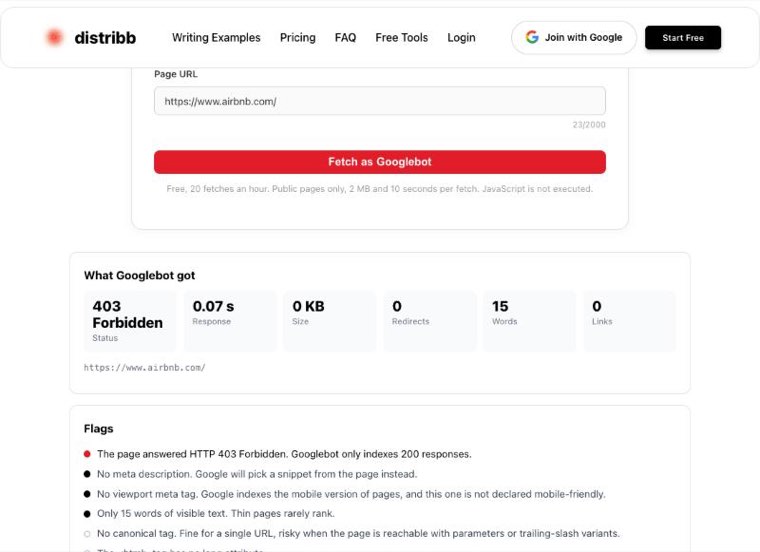
We pointed it at airbnb.com. The answer came back in 0.07 seconds: 403 Forbidden, 0 KB, 15 words. Airbnb serves its home page to Google without a problem; it refuses anything that claims to be Googlebot without coming from Google. That is the main limit of every simulator in this list, shown in one screenshot.
Tame the Bots Fetch & Render
Tame the Bots is the free tool technical SEOs reach for when JavaScript is involved. It renders the page in a headless Chrome (Puppeteer), applies robots.txt with Google's open source parser, and returns the response headers, the initial HTML, the rendered HTML, a diff of the two, blocked resources, console errors and a screenshot. You can fetch from the UK or the US, pick Googlebot Smartphone, Googlebot Desktop, Google-InspectionTool or Bing, and switch JavaScript off to see what a non-rendering crawler gets.
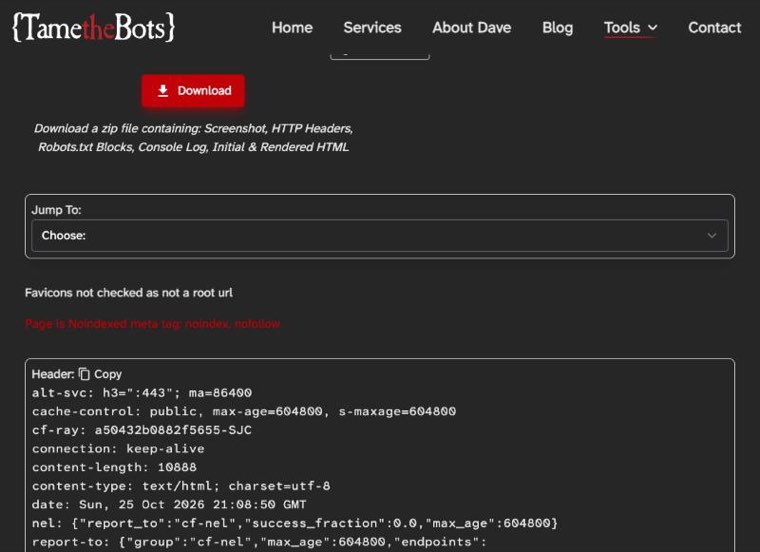
It is slower: our test took 1 minute 35 seconds. It was also the most revealing. We tested a JavaScript-built tool page on a site that serves crawlers a pre-rendered copy. A browser showed the working tool. Our curl request with the Googlebot user agent got a 200 and an empty JavaScript shell with no visible text. Tame the Bots, a few minutes later, got a cached pre-rendered page with status 404, the title "Page not found" and a noindex, nofollow meta tag. Three requests, three different answers. If that were your page, the 404 snapshot is the one to worry about, and you would only find it by rendering with a crawler user agent.
The two that did not work for us
SEO PowerSuite's free Googlebot simulator on link-assistant.com returned "Something went wrong. Please try again later." on two different URLs, one of them a Google documentation page. Sitechecker's Googlebot simulator would not start a test from its free page for us. Both may work for you on another day; we only report what we saw.
Method 3: curl or your browser with the Googlebot user agent
If you are comfortable in a terminal, curl gives you the cleanest comparison: the same URL, two user agents, and you diff the answers. This shows you whether your server or CDN treats Googlebot differently from people, which is the root of cloaking problems and of many "Google sees an old version" problems.
curl -sI -A "Mozilla/5.0 (Linux; Android 6.0.1; Nexus 5X Build/MMB29P) AppleWebKit/537.36 (KHTML, like Gecko) Chrome/141.0.7390.122 Mobile Safari/537.36 (compatible; Googlebot/2.1; +http://www.google.com/bot.html)" https://example.com/page

curl -s -A "Googlebot/2.1 (+http://www.google.com/bot.html)" https://example.com/page -o googlebot.html
curl -s -A "Mozilla/5.0 (Macintosh; Intel Mac OS X 10_15_7) AppleWebKit/537.36 (KHTML, like Gecko) Chrome/141.0.0.0 Safari/537.36" https://example.com/page -o browser.html
diff googlebot.html browser.html
The first command prints only the headers, which is enough to see the status code, redirects, X-Robots-Tag and caching. The other three save both versions and compare them.
What we got: Googlebot user agent versus Chrome
We ran that comparison in late October 2026 against a few large sites and one of our own pages. Word counts are visible text with scripts and styles removed.
| URL | Googlebot user agent | Chrome user agent |
|---|---|---|
| airbnb.com | 403, 17 words | 200, 85 words (the rest is built by JavaScript) |
| reddit.com | 403 | 200 |
| nike.com | 403 | 302 redirect |
| medium.com | 403 | 403 |
| distribb.io/blog/site-audit-checklist | 200, 3,863 words | 200, 3,863 words |
Three sites served a browser but refused the fake Googlebot. That is correct behaviour on their side: they verify Googlebot by IP, and a curl request from an ordinary connection fails that check. It also tells you something about your own tests. If your firewall, Cloudflare rules or security plugin block a spoofed Googlebot, a simulator will report a 403 that the real Googlebot never sees. Check the real crawler in URL Inspection before you change anything.
One more thing from the airbnb.com row: the page returned 85 words of text to a browser before JavaScript ran, so nearly everything a visitor reads is built by scripts. Google can render that; many AI crawlers cannot.
Do the same in Chrome without a terminal
- Open the page and press F12 (Cmd+Option+I on a Mac) to open DevTools.
- Open the menu with three dots, then More tools, then Network conditions.
- Untick "Use browser default" under User agent and choose Googlebot Smartphone from the list.
- Reload the page. To see it without JavaScript as well, open the command menu (Ctrl+Shift+P or Cmd+Shift+P), type "Disable JavaScript" and reload again.
This shows the rendered page your server sends to the Googlebot user agent, but from your own IP, so the same IP checks apply.
Method 4: the Rich Results Test for any URL
The Rich Results Test is the most useful free tool on this page, and it is not marketed as a simulator at all. Google fetches the URL with its own infrastructure, renders it with the smartphone crawler by default, and gives you the same "View tested page" panel as URL Inspection: rendered HTML, a screenshot, the HTTP response, page resources that could not be loaded, and the JavaScript console. It works on any public URL, including your competitors' pages, and needs no login.
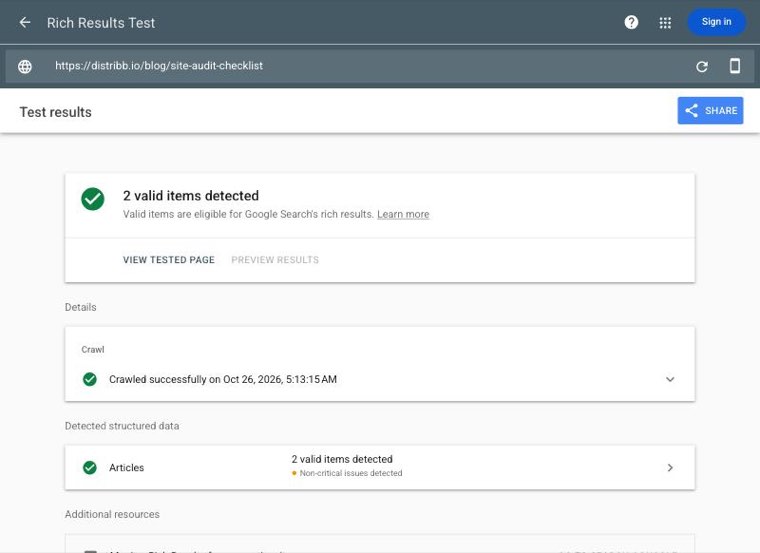
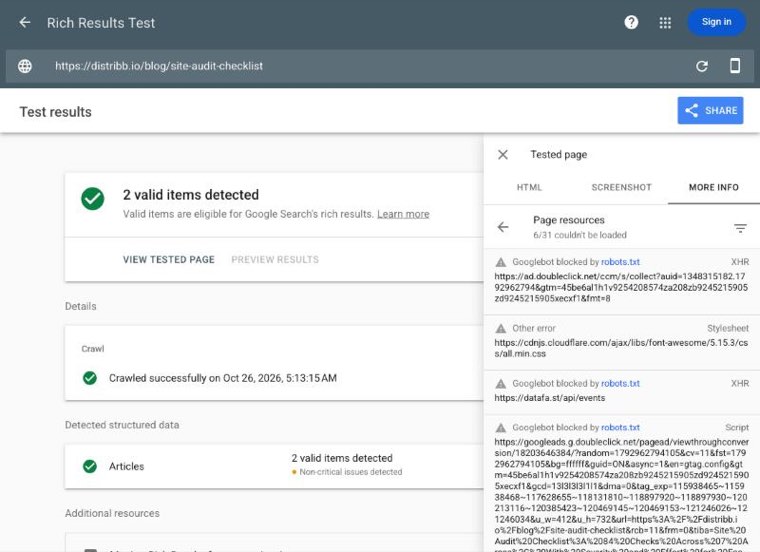
On our site audit checklist page it reported "6/31 couldn't be loaded" under page resources. That sounds bad until you open the list: four were ad and analytics requests (Google Ads on doubleclick.net and an analytics service) blocked by those services' own robots.txt files, and two were third-party files that failed to load, a Font Awesome icon stylesheet and LinkedIn's tracking script. None of them changes the content Google indexes, so there was nothing to fix. A blocked CSS or JavaScript file on your own domain that builds the layout or the main content would be a different story.
A note on the Mobile-Friendly Test: Google retired it, and its old address now redirects to the Chrome Lighthouse documentation. For mobile rendering, use the Rich Results Test (smartphone is the default) or Lighthouse in Chrome DevTools.
What to look for in the Googlebot view
Whichever method you use, go through the same list:
- Status code. Google only indexes pages that return 200. A 3xx should end on the right URL in one hop; a 4xx or 5xx means the page is out.
- Robots directives. Look for
noindexin the meta robots tag and in theX-Robots-Tagheader. A noindex left over from a staging site is one of the most common reasons a new page never shows up. - Canonical. It should point at the page itself or at the version you want indexed, on the live domain, not the staging or old domain.
- Text in the raw HTML. Compare the text a fetch-only simulator sees with the rendered HTML. If the main content is only in the rendered version, Google has to render the page to see it, and crawlers that don't render never will.
- Links as real anchors. Internal links need to be
<a href>elements with a URL. Links that only work through JavaScript click handlers are not followed. - Blocked resources. CSS and JavaScript on your own domain that robots.txt blocks can leave Google with a broken layout or missing content. Check your rules with a robots.txt checker.
- Page size. When crawling for Google Search, Googlebot reads the first 2 MB of an HTML file (64 MB for a PDF), per Google's documentation. Content past that point is ignored. Very long pages with inline images or huge inline scripts can hit this.
- Title and description. Check that the title and meta description Google receives are the ones you wrote. A SERP preview tool then shows how they will look in the results.
Common problems and how to fix them
| What you see as Googlebot | Likely cause | Fix |
|---|---|---|
| 403 or a challenge page in a simulator, but URL Inspection is fine | Firewall or CDN blocks spoofed Googlebot | Nothing to fix. Confirm with URL Inspection. |
| 403 or 5xx in URL Inspection too | Bot rules blocking real Google IPs, or server errors under crawl load | Allow Google's published IP ranges, check server logs and the Crawl Stats report |
| Almost no text in the raw HTML | Content rendered on the client by JavaScript | Server-side rendering or pre-rendering for the main content |
| Rendered page differs from what visitors see | Pre-render cache is stale or broken | Purge the cache, re-test with a crawler user agent and rendering on |
| "Page not found" text with a 200 status | Soft 404 from a JavaScript router | Return a real 404, or add noindex on error views |
| noindex present | Staging setting, SEO plugin, or a header added by the server | Remove it in the plugin or server config, then request indexing |
| Canonical points at another URL or domain | Template bug or a migration leftover | Self-referencing canonical on the live URL |
| CSS or JS on your domain blocked by robots.txt | An old Disallow rule for /wp-includes/, /assets/ or similar | Remove the rule; rebuild the file with a robots.txt generator if it is a mess |
| Links missing from the link list | Navigation built with buttons or onclick handlers | Use real <a href> links |
A single-URL check finds the problem on one page. To find every page with the same problem, run a crawl. Our site audit checklist lists 84 checks across seven areas, and the SEO audit checklist covers the on-page side. If you would rather use software for the crawl, we compared the options in our roundup of website audit tools.
How to check that a visitor really is Googlebot
The other side of the same problem: your logs show "Googlebot" hitting the site hard, or a scraper hiding behind the name. The user agent proves nothing. Google's verification guide gives two checks.
The first is a reverse DNS lookup on the IP from your logs, then a forward lookup on the hostname it returns. The hostname must end in googlebot.com, google.com or googleusercontent.com, and the forward lookup must return the same IP. Google's own example:
host 66.249.66.1
1.66.249.66.in-addr.arpa domain name pointer crawl-66-249-66-1.googlebot.com.

host crawl-66-249-66-1.googlebot.com
crawl-66-249-66-1.googlebot.com has address 66.249.66.1
The second, better for automation, is to match the IP against the ranges Google publishes as JSON. The Googlebot IP list we downloaded in late October 2026 had been regenerated on 23 October, so fetch it on a schedule rather than hardcoding it. Most CDNs and security plugins offer a "verified bots" setting that does this for you; turn it on rather than whitelisting the user agent.
Let Distribb watch crawlability for you
A simulator answers the question for one URL on the day you think to ask. Distribb runs the whole job on autopilot. You connect your site and Google Search Console, and it pulls indexing errors and coverage data, audits technical SEO, structured data and Core Web Vitals, and ranks every issue as Critical, Warning or Opportunity so you know what is costing you traffic. You can run the free Distribb site audit during the 7-day trial.
The audit is one part of it. Distribb also does the keyword research, writes and publishes the articles to your CMS, builds backlinks through its exchange network, and tracks whether your brand shows up in AI search answers. You don't need an SEO on staff to run it. As Distribb pricing shows, Pro is $97 a month. Accelerator is $495 a month and adds a person who reviews every piece before it goes out. The honest limit: it is a platform, not a bespoke creative agency, so if you want a custom brand campaign designed from scratch, that is a different kind of hire.
FAQ
Is there a Google crawler simulator that runs JavaScript?
Yes. The Rich Results Test and URL Inspection both render JavaScript with Google's own renderer. Among third-party tools, Tame the Bots Fetch & Render renders the page in headless Chrome and shows the initial and rendered HTML side by side. Fetch-only simulators, including ours, show the HTML before rendering, which is what non-rendering crawlers see.
How do I run a Googlebot test on my site?
Inspect the URL in Search Console and click Test live URL, then View tested page. If you don't have Search Console access, paste the URL into the Rich Results Test. For a fast check of status, robots directives and canonical, use a free Googlebot simulator.
How can I see my page as Googlebot?
Open the Screenshot tab under View tested page in URL Inspection or the Rich Results Test. That is the image Google's renderer produced. The HTML tab next to it is the rendered code Google indexes from.
What is the Googlebot view in Search Console?
It is the result of URL Inspection: the indexed version of the page (crawl date, canonical, indexing status) and, after a live test, the rendered HTML, screenshot, response headers, blocked resources and console messages from Google's fetch.
Does Fetch as Google still exist?
Not under that name. Fetch as Google lived in the old Search Console. Its job now sits in URL Inspection: Test live URL fetches and renders the page, and Request indexing asks Google to crawl it again.
How does Google see my site?
Googlebot fetches the HTML, queues the page for rendering, runs the JavaScript, and indexes the rendered result, mostly as a smartphone. It reads the first 2 MB of each HTML file, follows real links, respects robots.txt and noindex, and picks one canonical URL per page. Search Console's Page indexing report shows what that adds up to across the whole site.
Can you block Googlebot?
Yes. A Disallow rule in robots.txt stops crawling, and a noindex tag or header stops indexing. Don't combine them on the same page: if robots.txt blocks the URL, Google never sees the noindex.
How often does Googlebot crawl a site?
There is no fixed schedule. Popular, often updated pages can be fetched several times a day; deep pages on small sites may wait weeks. The Crawl Stats report in Search Console (Settings, then Crawl stats) shows the real number of requests per day for your site.