

Most content calendars are free. But free doesn't mean useful, and only a handful of Google Sheets templates actually save you time instead of creating more work. Here are the nine best options right now, with honest notes on who each one is actually built for.
1. Distribb.io, AI‑driven SEO calendar for agencies
Take a template first. They are free, and one of them will be enough for a while. The sheet stops working at a predictable moment: when the bottleneck moves from remembering what to publish to actually producing it. At that point every row is accurate and nothing ships, and a better template does not help.
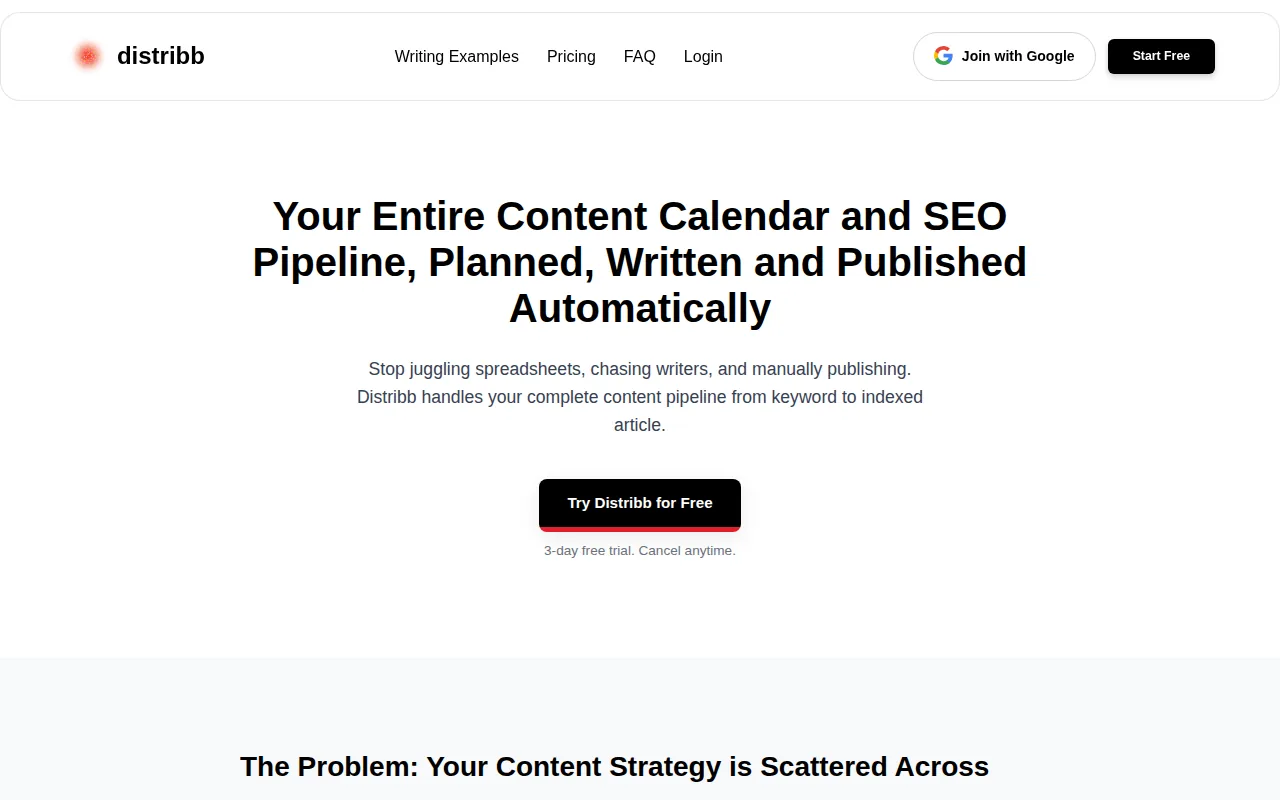
Distribb.io replaces the sheet with something that produces. Keywords fill the slots from search data, articles get written and published into your CMS on their assigned dates, and each row moves through Planned, Writing, Review, Published and Indexed on its own. Indexed is confirmed against Search Console rather than ticked by hand. The roadmap comes from Distribb's AI content writer, which writes and publishes the pieces it schedules.
For agencies the useful part is the view across clients. The SEO content calendar inside Distribb.io holds several pipelines at once, with status columns showing what cleared review and what is still in draft. It also tracks AI search visibility, which none of the templates below touch. If you only want a standalone sheet, our roundup of content calendar templates covers the wider set including options outside Sheets.
Pros:
- The rows fill themselves from search demand, which is the one job no template on this page does
- Stages advance without anyone dragging anything, so status reflects reality
- Indexed verified against Search Console, not marked done at publish time
- Publishes into the CMS on the date in the calendar, rather than reminding you to
Cons: You lose the thing that makes a spreadsheet good, which is that you can restructure it however you like in ten seconds. This is an opinionated pipeline and no amount of settings will make it behave like a blank grid. If your process is unusual, the sheet will fit it better.
For who: Teams whose calendar is accurate and whose blog is still empty, usually one or two people trying to keep publishing moving. Wrong choice if you want total control over the structure.
Pricing: $97 a month with a 7-day free trial. Accelerator, which adds done-for-you off-site distribution, is $495 a month. Two prices, no free plan, both on Distribb pricing. The templates below stay free.
2. Free Content Calendar Template (Spreadsheetpoint), Auto‑date dropdowns for fast planning
The one to grab if your main frustration is retyping dates every month. Change the month in the dropdown at the top and every date in the sheet updates itself, which saves about ten minutes of reformatting a month.
It covers twelve months on separate tabs, so you can plan a quarter ahead without scrolling through one enormous sheet. Each row holds title, type, meta description, keywords and a status dropdown. What belongs in those rows before a writer starts is covered in our SEO content brief template.
Pros:
- Dates update from one dropdown, the only genuine time saver among the free templates here
- Twelve monthly tabs, so a quarter can be planned without a single giant grid
- SEO fields already present, including meta description and a keyword list
- Native Sheets collaboration, so ownership is a name in a cell and not a meeting
Cons: Beyond the date formula it automates nothing. Every title, keyword and status is still typed by hand, which means the calendar is only ever as current as the last person who remembered to update it.
For who: Solo creators and small writing teams who plan monthly and publish steadily. Less useful for anyone who wants the calendar to do part of the thinking.
Pricing: Free. Open it, choose File then Make a Copy, and it is yours with no account and no upsell.
3. Spreadsheetpoint Content Calendar Template 2, Built‑in add‑on integrations
Spreadsheetpoint's daily template, laid out as a week at a glance organised by platform. Each day has rows for Twitter, Facebook, Instagram, TikTok, LinkedIn and a custom slot.
Every platform row tracks title, content type, a published checkbox, notes, the post link and click engagement. Because it is a standard Sheets file you can layer add-ons on top to pull analytics in beside the plan.
Pros:
- Laid out by platform, not by date, which matches how social work is actually divided
- Engagement columns sit beside the plan, so results and schedule live together
- Standard Sheets file, so add-ons and Workspace connections work without modification
- Filter by unchecked boxes at the end of a week to see exactly what slipped
Cons: The weekly grid runs out of room fast. Past roughly three posts a day per platform the layout becomes cramped and you end up fighting row heights instead of planning content.
For who: Distributed teams posting steadily across several channels. Wrong fit for high-frequency accounts publishing many times a day.
Pricing: Free, like the first Spreadsheetpoint template, with no account required.
4. RankYak Template, SEO‑focused calendar that syncs with RankYak platform
Not a blank grid. RankYak's sheet connects to the company's own SEO automation platform, which analyses your niche, generates a content roadmap and populates the calendar with a daily article plan.
The columns cover publication date, target keyword, content status and article title, and they fill from the platform rather than from you.
Pros:
- The sheet arrives populated, which is a different proposition from the free templates here
- Keyword and date decided by the platform, removing the daily what-do-I-write question
- Status stays in sync with what the platform has actually produced
- Readable by anyone, since the output lands in an ordinary Google Sheet
Cons: The sheet is a window onto a paid subscription and has no independent life. Cancel and you are left with a static grid, which makes this the one option on the page you cannot keep for free.
For who: Teams that want the calendar and the writing bought together and are comfortable with a single vendor owning both. Wrong choice for anyone who wants a sheet they own outright.
Pricing: The template is free. The platform behind it is $49 a month at entry, $129 for Professional ($1,290 a year) and $299 for Business ($2,990 a year).
5. HubSpot Template, Multi‑platform schedule for social media teams
HubSpot's editorial calendar is built for teams working across several channels at once, with a schedule that treats blog, email and social as one plan rather than three.
The structure is conventional and that is the point: anyone who has used a marketing calendar before will recognise it immediately. Our social media calendar template in Google Sheets covers the channel-by-channel version of the same job.
Pros:
- Multi-channel by default, so a campaign is visible across blog, email and social in one row
- Conventions everyone already knows, which shortens onboarding to about a minute
- Sensible for larger teams, with room for owners and review stages
- Backed by documentation and examples, unusual for a free spreadsheet
Cons: It is a lead magnet and behaves like one. You hand over an email address to download it, and the template is designed to make the case for the paid product it sits beside rather than to be the last calendar you need.
For who: Marketing teams running campaigns across several channels who already think in HubSpot's vocabulary. Wrong choice if you would rather not join a mailing list to get a spreadsheet.
Pricing: The template is free behind an email signup. HubSpot's own Marketing Hub has a free tier, but its paid tiers are quoted through a price calculator and currently advertise limited-time promotional rates, so there is no stable list price worth quoting here.
6. Smartsheet Template, Campaign‑centric calendar with deadline alerts
Smartsheet's calendar is campaign-centric rather than post-centric, organised around deadlines and the work that has to happen before a date rather than the date itself.
Deadline alerts are the differentiator. The sheet can tell someone that a draft is due tomorrow instead of waiting for a person to notice.
Pros:
- Deadline alerts that actually fire, the one automation missing from every free grid here
- Campaign structure, grouping the tasks behind a publication date rather than just the date
- Dependencies between rows, so a slipped draft moves what follows it
- Familiar to anyone from project management, not just marketing
Cons: The alerts and dependencies are Smartsheet platform features, not Google Sheets ones, so the free downloadable version is a plain grid and the useful half sits behind a per-seat subscription. It is also heavier than a content calendar needs to be.
For who: Teams already running projects in Smartsheet who want content inside the same system. Overbuilt for a two-person blog.
Pricing: The template is free. Smartsheet itself is $12 per member per month billed monthly, $9 billed yearly, with Business at $24 ($19 yearly) and Enterprise quoted.
7. Google Sheets Geeks Template, Aesthetic layout with color‑coded columns
The pick for anyone who wants a planning sheet that looks intentional rather than like a default grey grid. Colour-coded columns separate platforms and content types, so a week reads at a glance.
The colouring runs on conditional formatting, so it updates itself when a status or platform changes. Nothing is reformatted by hand.
Pros:
- Conditional formatting does the colouring, so the sheet stays tidy without maintenance
- Genuinely scannable, which is the difference between a calendar you open daily and one you abandon
- Simple row structure, date, platform, type, topic and status, with nothing extra
- Free with no signup, unlike most branded templates
Cons: The palette is opinionated, and if it fights your brand colours you will spend twenty minutes rewriting conditional formatting rules before you can use it. It also has no automation, integrations or approval flow of any kind.
For who: Individual creators and very small teams who want a clean weekly or monthly view. Wrong choice for a team that needs review stages or a paper trail.
Pricing: Free. It is a Google Sheets copy with no paid tier attached.
8. SocialBee Template, Cross‑platform publishing with approval columns
Built around the approval workflow. Each row carries an approval status column tracking whether a piece has cleared review before it goes live, which removes an email chain for teams working to a client sign-off.
It covers cross-platform publishing with a section per channel, and the approval column sits next to the scheduled date so waiting posts are obvious.
Pros:
- Approval status as a first-class column, the only template here that treats sign-off as part of the process
- Doubles as an audit log, which matters when a client disputes what was agreed
- One view across channels, without tab switching
- Free with no strings beyond the vendor's own branding
Cons: It records approval and cannot enforce it. Nothing stops someone publishing a post the sheet says is still awaiting review, because the template connects to no publishing platform at all.
For who: Freelancers and agency teams who need documented client approval before posting. Unnecessary overhead for a solo creator approving their own work.
Pricing: The template is free. SocialBee itself is $29, $49 or $99 a month billed monthly, or $290, $490 and $990 a year, with a 14-day trial and no card required.
9. Hootsuite Template, Three‑plus platform scheduler with status tracking
A scheduler-shaped calendar covering three or more platforms with status tracking, laid out the way Hootsuite's own product thinks about publishing.
The status column is the useful part: draft, scheduled and published as explicit states rather than an implied one.
Pros:
- Explicit publishing states, so nothing sits in an ambiguous half-done row
- Built for three or more platforms, which is where a simple grid usually breaks down
- Mirrors a real scheduling tool, so moving to one later is not a rebuild
- Well documented, with guidance on how to actually run it
Cons: It is a static preview of a paid product, and the gap is wide. The sheet tracks that a post is scheduled without scheduling anything, so someone still has to be at a keyboard at the right time.
For who: Social teams evaluating whether they need a scheduler at all. Wrong choice if you already know you do, in which case buy one and skip the spreadsheet.
Pricing: The template is free. Hootsuite plans are $99 a month for Standard, $199 for Professional and $399 for Advanced, with Enterprise quoted.
How to Choose the Right Template for Your Workflow
The right template depends on one thing: where your current process breaks down. Here's a quick decision frame.
- You need automation: Use Distribb.io (AI-driven) or RankYak (SEO pipeline). Both fill the calendar for you instead of waiting for you to type.
- You manage a team with approvals: SocialBee or Hootsuite. Both have dedicated approval columns that create a simple sign-off trail.
- You run campaigns with deadlines: Smartsheet. The deadline alerts and dashboard analytics are built for campaign sprints.
- You post across five or more platforms daily: HubSpot or Spreadsheetpoint Template 2. Both are organized around high-frequency, multi-platform output.
- You want something clean and simple: Spreadsheetpoint Template 1 (auto-date dropdowns) or Google Sheets Geeks (color-coded layout). Both are fast to set up and easy to maintain.
One structural tip that applies to any of these: freeze your header row before you add content. Go to View, then Freeze, then 1 row. Once you have 50+ rows, you'll lose track of columns otherwise. Also set up data validation dropdowns for your status and platform columns early. Consistent data in those columns makes filtering and sorting actually work.
If you're building a calendar from scratch rather than using a template, the column structure that works for most teams is: date, platform, content type, topic or caption, visual asset link, status, and owner. That's the minimum. Add a content pillar column if you're tying posts to SEO goals. Keep it to columns you'll actually fill in every week, otherwise the sheet becomes a chore rather than a tool.
FAQ
What should a content calendar template in Google Sheets include?
At minimum: date, platform, content type, topic or caption, status, and owner. Most useful templates also add a visual asset link and a notes column. If you're tracking SEO goals, add a target keyword column. The key is keeping only columns you'll fill in consistently. A half-empty column adds clutter without adding value.
Can I use a Google Sheets content calendar with my whole team?
Yes. Share the file and set permissions: view-only for stakeholders, edit access for the production team. Everyone sees the same live data. Native Google Sheets features like comments, version history, and cell-level notes handle most collaboration needs without a separate tool. For approval workflows, add a status dropdown column and assign owners per row.
What's the difference between a social media calendar and an editorial calendar in Sheets?
A social media calendar focuses on individual posts across platforms, with fields for caption, platform, and publish time. An editorial calendar covers longer-form content like blog posts and email campaigns, with fields for keywords, author, deadline, and publication date. Many teams use one sheet for both by adding a content type column that distinguishes post types.
How do I make dates update automatically in Google Sheets?
Use the formula =B4+1 to auto-populate sequential dates down a column from a starting date. For monthly tabs that update when you change a single cell, use =EDATE() to shift dates forward by one month. The Spreadsheetpoint templates use a dropdown-driven version of this, where changing the month at the top cascades through all date cells automatically.
Are there Google Sheets content calendar templates with AI features?
Yes, but they're rare. Of the options on this list, only Distribb.io includes genuine AI automation: it generates your content roadmap, populates the calendar with article titles and keywords, and tracks AI search visibility. RankYak auto-populates from its SEO platform. Every other template on this list requires manual entry for all content fields.
How do I add color-coding to a content calendar in Google Sheets?
Use conditional formatting. Select your status or platform column, go to Format, then Conditional Formatting, and create rules for each value. For example: Draft gets light gray, In Review gets yellow, Published gets green. This updates automatically as you change cell values. The Google Sheets Geeks template has this pre-built if you want to see a working example before building your own.
Wrapping Up
If you want a template that works right out of the box without any setup, start with Spreadsheetpoint's auto-date option or HubSpot's multi-platform version. If you're running SEO content at scale and want the calendar to do real work for you, Distribb.io is the clear step up. You can explore how Distribb.io handles the full content pipeline, from keyword research through publishing, on the Distribb.io content calendar page, and compare plans on Distribb pricing.