

The standard YouTube embed code pulls roughly half a megabyte of JavaScript into your page before anyone presses play. Drop three of them into an article and you have taken a fast page and made it slow, which costs you the Core Web Vitals you were told to protect.
That is the real problem with embedding video for SEO, and almost every guide on this topic skips it in favour of "video increases time on page". This one covers the embed method that does not damage performance, the schema that gets you into video results, and the honest limits of what an embedded video does for rankings.
The short version
- Never paste the default embed code directly into a post that has more than one video.
- Use a facade: load a thumbnail, and only load the player when someone clicks.
- Use
youtube-nocookie.comrather thanyoutube.com. - Add
VideoObjectschema, or Google cannot show your page in video results. - Put a transcript on the page, because the words in the video are invisible to search otherwise.
What embedding actually does for SEO
Worth being straight about this, because the claims in this category are inflated.
It does not give you the video's ranking. Embedding a YouTube video on your page does not transfer any of that video's authority to your page. The video ranks on YouTube and in Google video results as a YouTube URL, not as yours.
It can get your page into video results, but only if you add VideoObject schema. Without the markup, Google has no structured signal that a video is on the page.
It genuinely helps engagement, which is the honest case for it. People stay longer, and on a page explaining something complex a video often explains it better than another 400 words.
It hurts speed unless you handle it, which is what the rest of this page is about.
Step 1: get the embed code, then do not use it as-is
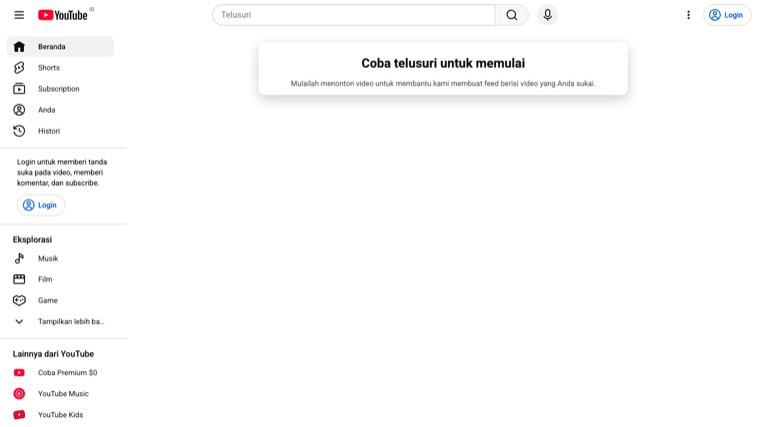
On the video, click Share, then Embed. You will get something like an iframe pointing at youtube.com/embed/VIDEO_ID.
Two changes before it goes anywhere near your site. Change the domain to youtube-nocookie.com, which is YouTube's privacy-enhanced mode and stops cookies being set until playback. And add loading="lazy" to the iframe so browsers defer loading it until it is near the viewport.
That gives you https://www.youtube-nocookie.com/embed/VIDEO_ID in an iframe with loading="lazy", title describing the video, and allowfullscreen.
Step 2: use a facade for anything below the fold
Lazy loading helps, but the moment the iframe enters the viewport it still loads the full player. A facade avoids that entirely: show a thumbnail image with a play button, and only insert the real iframe when someone clicks it.
The open source lite-youtube-embed component does this in a few lines and is what most performance-focused sites use. Many WordPress and Webflow setups have a lazy-load or facade option built into their embed block, and turning it on is usually a checkbox nobody has ticked.
The difference is not marginal. A facade loads a single image, perhaps 15KB, instead of several hundred kilobytes of player. On a page with three videos that is most of a second of load time.
Step 3: set a fixed aspect ratio
Embeds that resize once loaded cause layout shift, which Google measures as Cumulative Layout Shift and which readers experience as text jumping while they read.
Wrap the embed in a container with aspect-ratio: 16 / 9 and let the iframe fill it at width: 100%; height: 100%. This reserves the space before the video arrives, and it also makes the embed responsive on mobile, which the default fixed-width code is not.
Step 4: add VideoObject schema
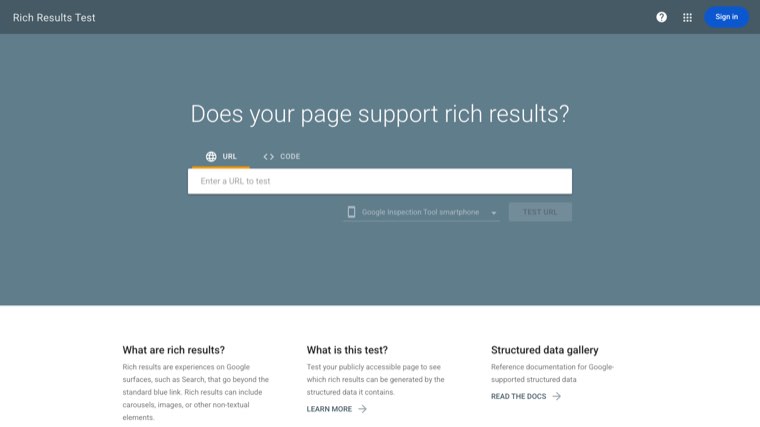
This is the step that separates pages appearing in video results from pages that do not. VideoObject schema tells Google there is a video here and what it contains.
The required properties are name, description, thumbnailUrl, uploadDate and either contentUrl or embedUrl. Add duration in ISO 8601 format and transcript where you have one. If the video has no proper description yet, the free YouTube description generator writes one you can use in both places.
Add it as JSON-LD in a script tag, then check it with Google's Rich Results Test before assuming it worked. Schema that does not validate does nothing at all, silently.
Step 5: put the transcript on the page
Everything said in the video is invisible to search engines unless the words also exist as text on the page. A ten-minute video might contain 1,500 words of genuinely relevant content that currently contributes nothing.
YouTube generates a transcript automatically. Open the video, click the three dots, choose Show transcript, then clean it up, because auto-transcripts get technical terms and names wrong and publishing them raw looks careless. Several of the best AI content creation tools will do that cleanup in one pass. If the article around the video still needs writing, our AI content writer handles that half.
Present it as a readable section rather than a wall of timestamps. A collapsible "Full transcript" block below the video works well and reads as a feature rather than an SEO device.
Step 6: write around the video, not just above it
A video dropped into a page with "watch the video below" is a wasted asset. Summarise the key points as text, use the video to demonstrate the thing that is hard to describe, and make the page work for someone who will not press play. If writing that text version is the step that keeps getting skipped, our roundup of SEO article writer software covers the tools that produce it.
Most readers will not press play. The page still has to answer their question.
Checking you did not break anything
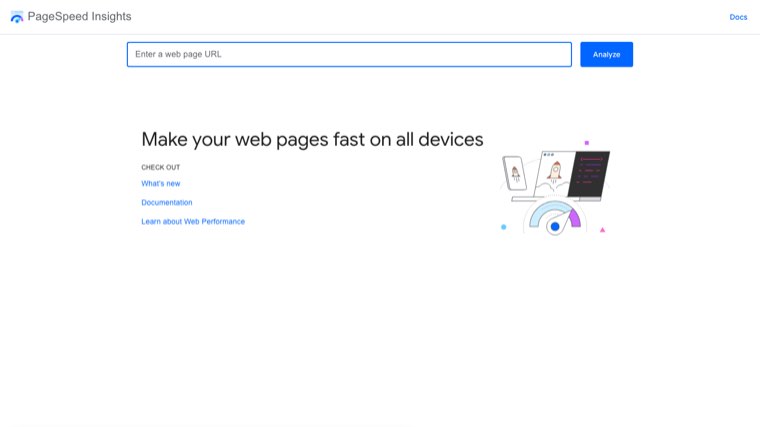
Run the page through PageSpeed Insights before and after adding the video. Watch Largest Contentful Paint and Cumulative Layout Shift specifically, and compare the mobile scores rather than desktop, because mobile is where embeds hurt.
If LCP moved by more than a couple of tenths of a second, your embed is not deferred properly. Go back to step two.
Then check Search Console after a few weeks. The Videos report shows whether Google has indexed the video on your page and flags problems such as a video being too small or the thumbnail being unavailable.
Common mistakes
Autoplay. It is hostile, it loads everything immediately, and on mobile it is often blocked anyway.
Multiple full embeds on one page. The single fastest way to ruin a page's performance score. Use facades or link out to the rest.
Schema that does not match the page. Marking up a video that is not there, or with a description that does not match, is a structured data violation rather than a clever trick.
Embedding for the sake of it. A video that does not help the reader does not help the page. Engagement signals come from the video being useful, not from its presence.
Forgetting the thumbnail is a real image.thumbnailUrl must point at an accessible image at a reasonable resolution, or the schema fails validation.
Does the video need to be yours
No. Embedding someone else's public YouTube video is allowed and is what the embed function exists for.
But VideoObject schema should describe a video you own or have rights to represent as page content. Marking up someone else's video as if it were your page's asset is the kind of thing that gets structured data ignored across a whole site.
If you embed third-party videos regularly, embed them properly and skip the schema.
Where this fits in a content programme
Video embeds are a page-level improvement, and they only matter on pages that already get traffic. Adding a perfectly optimised embed to a page nobody visits changes nothing. Where the shortage is pages rather than video, our list of blog writing services covers buying them in.
Get the page ranking first, then improve it. Our guide on how to repurpose content for social media covers getting more out of the video itself, and content hub examples covers structuring the pages the video sits inside.
If the constraint is that there are not enough pages for any of this to matter yet, Distribb runs keyword research, writing, publishing and internal linking on a schedule, with a 7-day free trial. It publishes the article, and the embed and schema above are still yours to add.