

Most lists of social media automation tools are really lists of schedulers. Scheduling is one job. Automation is a wider set of jobs: producing the posts, queueing them, recycling the good ones, routing replies to a person, and reporting on what happened. How to work through those jobs in order is covered in our guide to choosing an AI social media automation tool.
Which tool is right depends on which of those is your bottleneck. If you have a folder of drafts and no time to post them, a scheduler solves it. If your calendar is empty because nobody has written anything, a scheduler will not help you at all.
How we checked this list
Every product below was loaded on its live site in August 2026, and every price came off the vendor's own pricing page on the same day, not from an older roundup. Anything that no longer resolves, redirects to a parked domain or has quietly shut down was cut before this list was written. Prices are the ones shown to a US visitor and several vendors bill per user or per channel, so read the unit next to the number. Where a plan is annual-billed we say so, because the monthly figure is usually higher.
Quick answer
- If the bottleneck is producing posts: Distribb
- Best if an AI agent should run the posting: SchedPilot
- Cheapest way to schedule properly: Buffer
- Best free plan: Metricool
- Best for agencies with client approvals: SocialPilot
- Best all-in-one with a real inbox: Agorapulse
- Best for content recycling: SocialBee
- Best for enterprise teams with budget: Sprout Social
Comparison
| Tool | Entry price | Free plan | Social inbox | Billing unit |
|---|---|---|---|---|
| Distribb | 3-day trial | No | No | Per site |
| Buffer | $5/mo | Yes, 3 channels | Community inbox | Per channel |
| Metricool | $20/mo | Yes, 1 brand | Limited | Per brand tier |
| Publer | Paid tiers | Yes, 3 accounts | Yes on paid | Per account |
| Pallyy | $15/mo | Yes, 15 posts | Yes on Pro | Per social set |
| SchedPilot | $21/mo | No | Replies only, from Gold | Per plan |
| SocialPilot | $17/mo | No | Yes on Standard | Per plan |
| Later | $18.75/mo | No | Yes on Growth | Per social set |
| SocialBee | $24.20/mo | No | Add-on | Per plan |
| Planable | $33/workspace | 50 free posts | Paid add-on | Per workspace |
| Sendible | $35/mo | No | Yes | Per plan |
| Loomly | $49/mo | No | Yes | Per plan |
| Agorapulse | $79/user | No | Yes | Per user |
| Hootsuite | $99/user | No | Yes | Per user |
| Sprout Social | $199/seat | No | Yes | Per seat |
1. Distribb, when the missing piece is the content itself
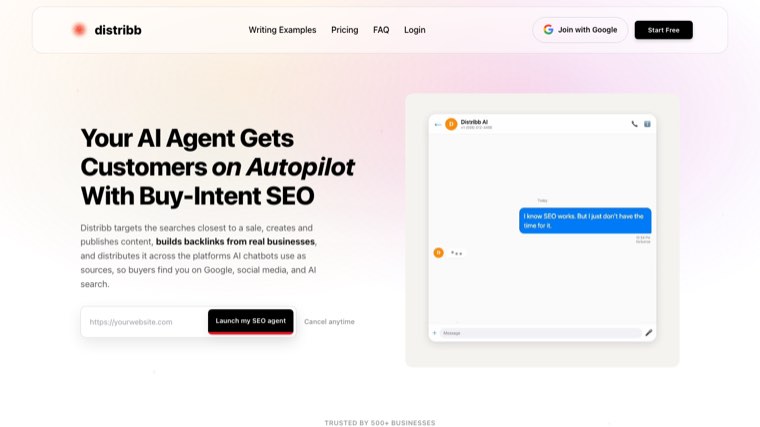
Worth being straight about why a tool that is not a social media tool leads this list. Every other product on this page solves scheduling. They assume you already have posts and need them placed at sensible times.
The failure most accounts actually hit is upstream of that. Month one goes fine, month two runs out of things to say, and no scheduler fixes an empty queue. Distribb attacks the supply instead: it writes long-form articles for search, publishes them to your CMS, and turns each one into native posts for LinkedIn, X, Instagram, Facebook, TikTok, Pinterest, Threads, Bluesky, Telegram and Google Business Profile.
The posts land in a drafts queue. You review them, edit what needs editing, then post them or paste them into whichever scheduler you already pay for. One article yields roughly eight to fifteen posts, written to each platform's format rather than the same caption copied twelve times, and our guide to automated SEO software covers how the publishing side works.
Pros:
- Solves supply rather than placement, which is the step no scheduler on this page can automate for you
- Posts generate automatically on publish, so the queue refills as a by-product of work you were already doing
- Ten platforms written natively, not one caption duplicated across every channel
- The social output stays tied to pages that rank, so each post points back at something with a reason to exist
Cons: It is not a social media management tool and does not try to be. There is no unified inbox, no engagement monitoring, no social listening and no per-platform analytics, and the scheduling is basic next to anything else here. If social is your primary channel, buy a dedicated tool from further down this page and use Distribb only for supply.
For who: Teams whose queue runs dry by week three. Skip it if you need an inbox, listening or analytics, which is most people searching this term.
Pricing: $97 a month with a 3-day free trial. Accelerator is $495 a month. Two prices, no free plan.
2. Buffer, the cheapest honest scheduler
Buffer charges per channel per month, which is the clearest pricing model in the category: connect three channels and you pay for three channels. The free plan covers three channels with ten scheduled posts each, refillable, plus saved ideas and an AI assistant.
Start here: Buffer.
Pros:
- Per-channel pricing you can predict, with no plan tiers to decode before you know the bill
- A free plan that does real work, three channels with refillable scheduled posts rather than a countdown to a paywall
- A community inbox for comments, included rather than sold as an add-on
- The lowest possible entry cost if you genuinely only run one or two channels
Cons: Per-channel pricing inverts once you pass roughly eight channels, at which point the per-plan tools here become cheaper for the same work. Team features are thin next to Loomly or Planable, so multi-person approval rounds do not really fit.
For who: Solo operators and small teams with a handful of channels who want the bill to be obvious.
Pricing: Free plan for 3 channels. Essentials $5 per channel per month, Team $10 per channel per month, both cheaper billed yearly. Read 7 August 2026.
3. Metricool, the strongest free plan
The free tier manages one brand across most networks, schedules a modest number of posts a month, tracks competitor profiles and keeps thirty days of analytics. That is considerably more than most tools in this category give away. Analytics is the real strength: Metricool reports on organic and paid together, which almost nothing else at this price does.
Start here: Metricool.
Pros:
- The most generous free plan in the category, useful indefinitely rather than as a trial in disguise
- Organic and paid reported together, which normally requires a tool several times the price
- Competitor tracking built in, scaling to a hundred profiles on paid tiers
- Brand-based pricing that suits anyone managing several properties rather than several channels
Cons: LinkedIn and X connections are not in the free plan, and X remains a paid add-on even on Starter, so the free tier is narrower than the headline suggests. Check the add-on column before you budget, because that is where the real number lives.
For who: Anyone who wants serious analytics without an enterprise contract, and anyone testing this category for free.
Pricing: Free plan for 1 brand. Starter from $20 a month billed yearly, $25 monthly, for up to 5 brands. Advanced from $53 billed yearly. X connections are a $10 per account add-on. Read 7 August 2026.
4. Publer, granular control at a fair price
Publer prices by social account and by team member, so you pay for exactly the footprint you have rather than for a tier somebody else designed. The free plan covers one user, one workspace and three social accounts, and its recycling and bulk scheduling are genuinely good for the money.
Pros:
- Pay for the exact footprint you run, account by account and seat by seat
- Recycling and bulk scheduling that hold up against tools charging several times more
- An unusually wide network list for a product at this price point
- A free forever tier covering three accounts, enough to run a small operation properly
Cons: The pricing calculator has so many dials that the monthly cost is genuinely hard to predict until you have configured the whole thing. Reporting is functional rather than deep, so pair it with something else if analytics is the point.
For who: People with an awkward footprint, several accounts and few users, or the reverse, who are overpaying on tiered plans.
Pricing: Free forever for 1 user and 3 accounts. Professional from $5 a month, Business from $10 a month, both per account and cheaper billed yearly. Read 7 August 2026.
5. Pallyy, the creator and small-agency pick
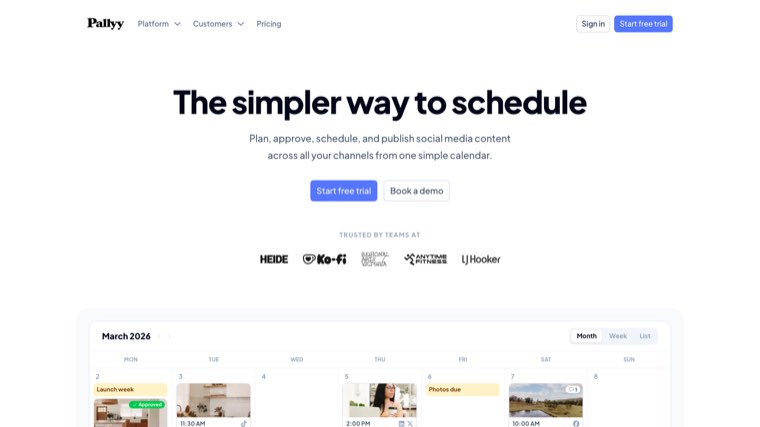
Pallyy runs a Starter plan for light use and a Pro plan with unlimited posts, a social inbox, queue scheduling, link-in-bio pages and AI captions. The free plan allows fifteen posts a month, which is enough to test it properly rather than just look at it.
The visual planner is the reason people stay. If Instagram grid layout matters to your work, Pallyy handles it better than tools costing four times as much.
Pros:
- The best visual planner at this price, including grid layout that dedicated Instagram tools charge a premium for
- A social inbox on Pro, which most tools at this level do not offer at all
- Link-in-bio pages included, removing a separate subscription for most creators
- Fifteen free posts a month, enough to judge it on real work
Cons: Every individual plan covers one social set, so any multi-brand work pushes you onto agency tiers or into paying per extra set. Analytics is basic next to Metricool, and it is not the tool to choose if reporting is what you are buying.
For who: Creators and small agencies doing visual-first work on one brand.
Pricing: Free plan with 15 posts a month. Starter $15 a month for 20 posts, Pro $25 a month for unlimited posts. Extra social sets $10 a month each. Read 7 August 2026.
6. SchedPilot, the scheduler your AI agent can drive
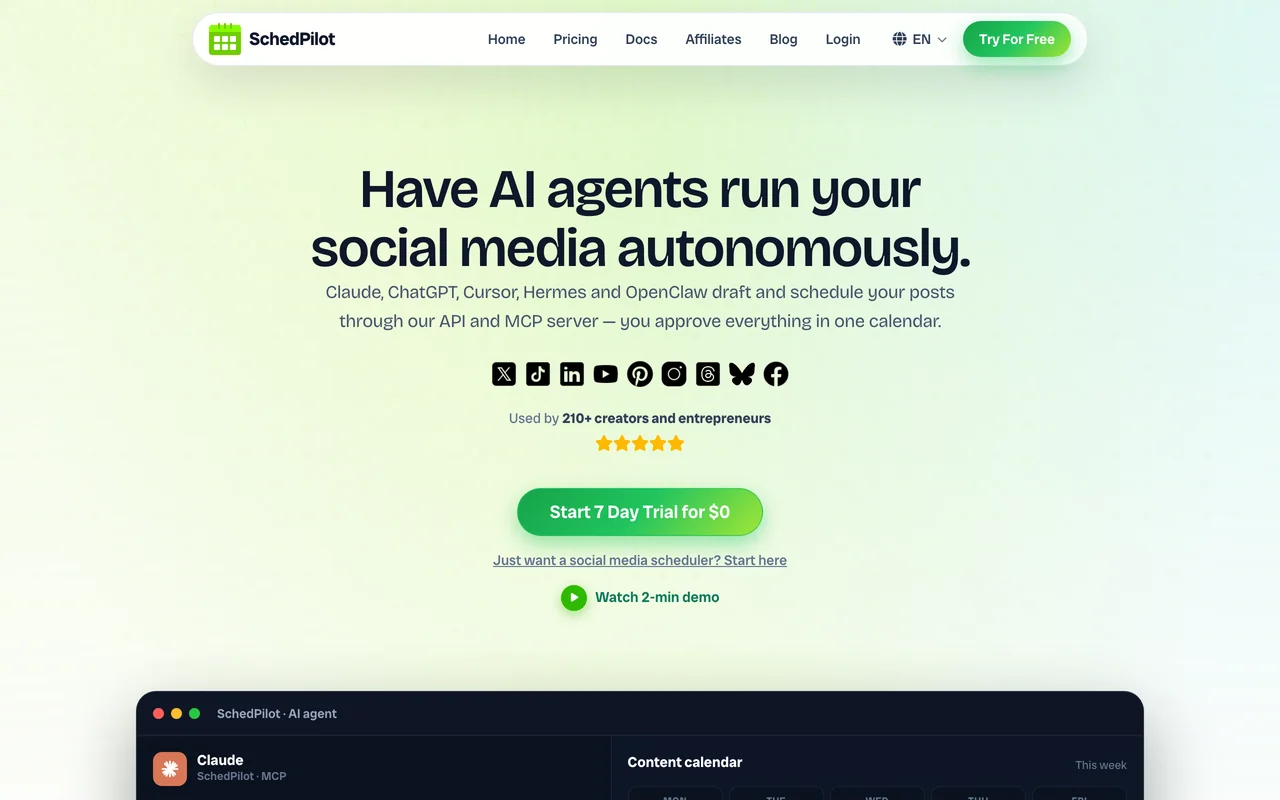
SchedPilot is a social media management and scheduler tool that exposes a REST API and an MCP server, so Claude, ChatGPT, Cursor or Hermes or an n8n workflow can draft and schedule posts across nine networks without you opening the dashboard.
Every post the agent creates still lands in your calendar for a one-click approval, which is the sensible way to let software post on your behalf.
Underneath that is a normal scheduler with a drag-and-drop calendar, best-time-to-post, bulk CSV import, evergreen recycling, a built-in editor for captioned short-form video, and per-account analytics. API access is on every plan, including the cheapest.
Pros:
- An MCP server and API on every tier, which is the only tool here that lets an AI agent run the queue rather than just suggest a caption
- Human approval before anything an agent writes goes live, so automation does not mean losing control of the brand
- Twenty accounts for $35 a month on Gold, which is a fraction of the per-channel or per-seat cost of most tools above it
- A video editor for Reels, Shorts and TikTok included, removing a separate subscription for short-form work
Cons: Team seats and approval workflows are Enterprise-only, so a multi-person agency starts at $79 a month rather than the headline price. The social inbox is limited to replying to posts and comments, with nothing like Agorapulse's moderation or assignment, and analytics is per-account reporting rather than anything cross-channel. It is also a small product with a small user base, which cuts both ways: fast support, thinner documentation.
For who: Developers, indie founders and creators who want their AI stack to do the posting, and agencies with more accounts than people who are being priced out of Buffer.
Pricing: Silver $21 a month billed yearly, $26 monthly, for 5 accounts and 450 posts. Gold $35 yearly for 20 accounts, unlimited posts. Platinum $49 for 40 accounts. Enterprise $79 for 100 accounts, 10 seats and approvals. All plans billed cheaper yearly. 7-day trial, no free plan. Read 10 September 2026.
7. SocialPilot, best value for agencies

SocialPilot's Standard tier adds a social inbox and its Premium tier adds client approval and white label reports, which is where it separates from the cheaper creator tools. For an agency running ten to twenty client accounts, it is usually the lowest total cost that still looks professional to a client.
Pros:
- Client approval and white label reports on Premium, the two things an agency cannot present without
- Extra accounts and users priced individually, so growth does not force a whole tier jump
- A social inbox from the Standard tier rather than as a paid add-on
- Genuinely low cost per client account compared with anything else offering approvals
Cons: The interface feels dated next to Planable or Later, and that shows in a client-facing demo. AI credits are metered rather than unlimited, so heavy caption generation runs into a ceiling the pricing page does not make obvious.
For who: Agencies running ten to twenty client accounts who need approvals and branded reporting.
Pricing: Essentials $20 a month, or $17 billed annually. Standard $40 a month, or $35 annually. Higher tiers run to $200 a month. Extra accounts $4 each, extra users $5. Read 7 August 2026.
8. Later, scheduling built around visual platforms

Later's Starter plan covers one social set of profiles, and Growth adds a second set, a social inbox, collaboration and approvals. Its best-time-to-post and trend forecasting are the differentiators, and the visual calendar suits Instagram and TikTok work specifically.
Pros:
- Best-time-to-post and trend forecasting that go beyond the generic scheduling advice everything else offers
- A visual calendar built for Instagram and TikTok rather than adapted from a text-first tool
- Approvals and collaboration from the Growth tier, which is a reasonable step rather than an enterprise jump
- UGC collection and custom roles higher up, useful for consumer brands
Cons: The entry plan includes only five AI credits a month, which is spent within a day of real use, and extra social sets are not available on Starter at all. That means the cheapest plan cannot grow with you even slightly.
For who: Consumer and creator brands whose work is visual-first and Instagram-led.
Pricing: Starter $18.75 a month billed yearly, Growth $37.50, Advanced $82.50. Extra social sets $11.25 a month, extra users $5. Read 7 August 2026.
9. SocialBee, best at recycling evergreen posts
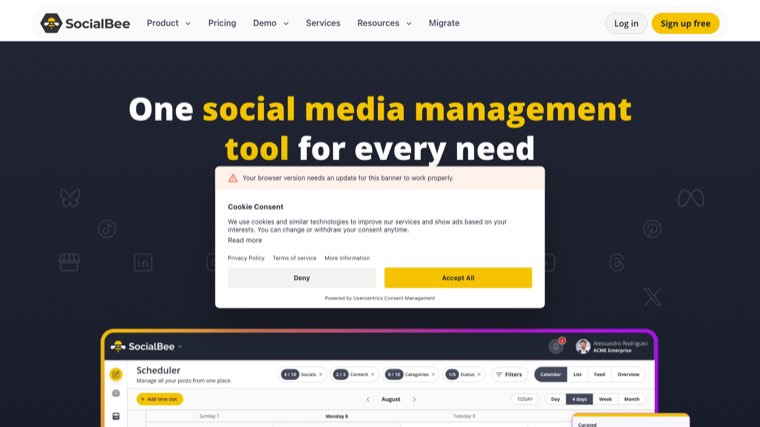
Content categories are the idea worth understanding here. You sort posts into buckets, set a posting pattern per bucket, and SocialBee cycles through them indefinitely. For evergreen content that stays true, that is far less work than rebuilding a calendar every month.
Pros:
- Category-based recycling, the best implementation of evergreen posting in the category
- Unlimited AI content generation included on every plan rather than metered by credits
- A clear ladder from solo to agency, with Pro tiers running to a hundred and fifty profiles
- Add-on profiles and workspaces priced individually, so you can grow without a tier jump
Cons: The category system takes real setup time before it pays anything back, and recycling only suits content that does not date, which rules out most news and product posts. The social inbox is an add-on rather than part of the core product.
For who: Businesses with a body of evergreen content they want working continuously rather than once.
Pricing: Bootstrap $29 a month, or $24.20 billed annually, for 5 profiles. Accelerate $49, or $40.80 annually, for 10. Pro $99, or $82.50 annually. 14-day trial. Read 7 August 2026.
10. Planable, best for approvals with clients
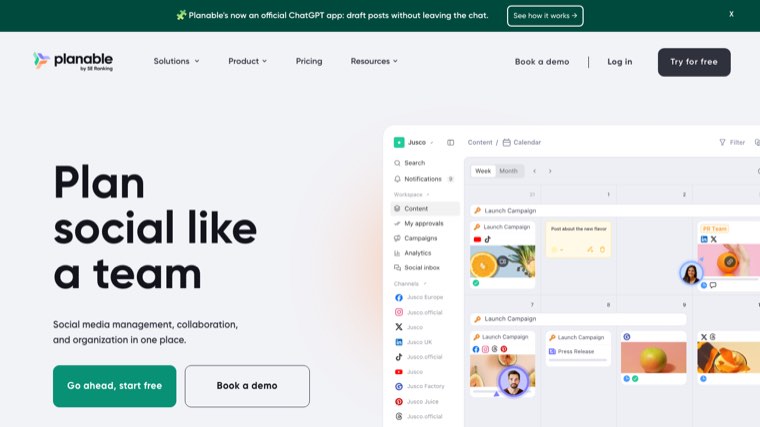
The whole product is designed around review. Clients and stakeholders comment on posts inside a preview that looks like the live platform, then approve. If your delays come from approval rounds rather than production, this is the fix, and unlimited users on every tier is unusual enough to matter.
Pros:
- Approval built as the core workflow, not bolted onto a scheduler as an afterthought
- Previews that match the live platform, which stops the round of comments about how it will look
- Unlimited users on every plan, so stakeholders cost nothing to add
- Fifty free posts with no time limit, enough to run one real client through the process
Cons: Analytics and the social inbox are both paid add-ons, so the real monthly cost sits meaningfully above the headline workspace price. Post caps are per workspace and fairly tight on Basic, which is the tier most people start on.
For who: Agencies and in-house teams whose bottleneck is sign-off rather than writing or scheduling.
Pricing: Basic $33 per workspace per month, Pro $49. Analytics add-on from $12 and social inbox from $7.50 per workspace per month. 50 free posts to start. Read 7 August 2026.
11. Sendible, agency workhorse with white label
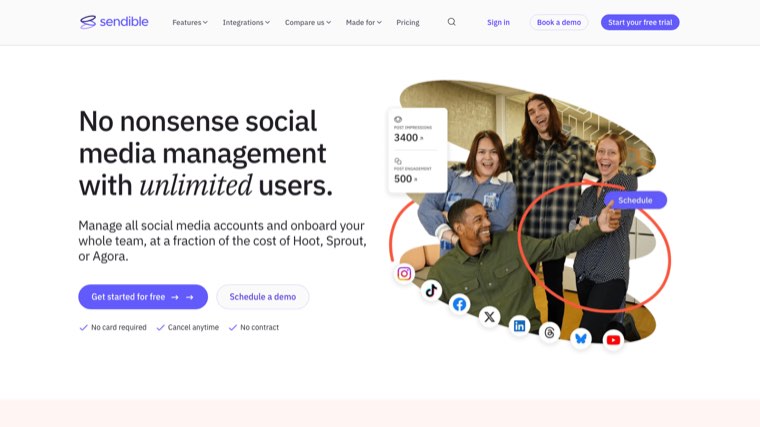
Unlimited users on every plan changes the arithmetic for teams considerably, because most competitors here charge per seat. White label is available so agencies can put a client-facing dashboard under their own brand, and monitoring and replying are included from the entry plan rather than sold up.
Pros:
- Unlimited users on every single plan, which is the deciding factor against per-seat tools for any team above two people
- Monitoring and replying from the entry tier, not held back for higher plans
- Workspace-based structure that maps cleanly onto separate clients or locations
- A wide ladder, from six profiles up to three hundred, without changing product
Cons: White label costs extra rather than being bundled, which stings on a product positioned for agencies. The reporting builder is also less flexible than a dedicated client dashboard, so branded reports take more compromise than you would expect.
For who: Agencies with more people than profiles, where per-seat pricing elsewhere is the real cost.
Pricing: Core $35 a month for 6 profiles, Plus $99 for 18, Premium $199 for 42, Elite $299 for 90, Enterprise $750 for 300. Unlimited users throughout. Read 7 August 2026.
12. Loomly, structure for in-house teams
Loomly's post ideas, approval workflows and custom roles suit a marketing team that needs process more than raw scheduling power. Custom branding and hashtag management arrive on the higher tier, along with unlimited users.
Pros:
- Process-first design, with roles and approval steps that match how an in-house team actually works
- Post ideas built in, which is a genuine help for teams staring at an empty calendar
- Unlimited users and calendars on the higher tier rather than metered seats
- Custom branding and hashtag management for teams presenting internally
Cons: The jump from the entry tier to the next one is steep with nothing in between, so a team that outgrows Starter faces a hard decision rather than a gradual one. It also does not compete on analytics, so reporting will come from somewhere else.
For who: In-house marketing teams who need structure and sign-off more than scheduling horsepower.
Pricing: Starter $65 a month, or $49 billed yearly, for 12 accounts and 3 users. Beyond $332 a month, or $249 yearly, for 60 accounts and unlimited users. Read 7 August 2026.
13. Agorapulse, the best inbox in the category

The unified inbox handles messages, organic comments and, from the Professional tier, ad comments too. Saved replies, automated moderation rules and inbox assignment make it the right buy when engagement volume rather than publishing volume is the problem you are solving.
Pros:
- The strongest inbox in the category, covering messages, organic comments and ad comments in one place
- Automated moderation rules, which is the only way high-volume comment sections stay manageable
- Inbox assignment and saved replies, so engagement can be shared across a team properly
- A free trial long enough to see a real engagement cycle before committing
Cons: Per-user pricing makes a five-person team expensive very quickly, and engagement work is exactly the kind that involves several people. Publishing is competent but no better than tools at a quarter of the price, so you are paying purely for the inbox.
For who: Brands where incoming comments and messages, not outgoing posts, are the workload.
Pricing: Standard $79 per user per month billed annually, $99 monthly. Professional $119 annually, $149 monthly. Advanced $149 annually, $199 monthly. Extra profiles $10 to $15 each. Read 7 August 2026.
14. Hootsuite, the incumbent
Its breadth is real: trend forecasting, brand monitoring, custom reports and one of the largest app integration libraries anywhere in the category. It is also the name most likely to already be approved by a procurement team, which is worth something in a large organisation.
Pros:
- The largest integration library in the category, which matters when it has to fit an existing stack
- Trend forecasting and brand monitoring included rather than sold as a listening product
- Unlimited accounts from the Professional tier, unusual at any price
- Procurement familiarity, a real advantage inside large organisations
Cons: It costs several times what tools covering the same publishing needs charge, and per-user billing compounds that with every person you add. Worth the money for a large team, genuinely hard to justify for a solo operator or a small agency.
For who: Large teams who need breadth and an approved vendor more than they need a keen price.
Pricing: Standard $99 per user per month, Professional $199, Advanced $399. Read 7 August 2026.
15. Sprout Social, enterprise, priced accordingly
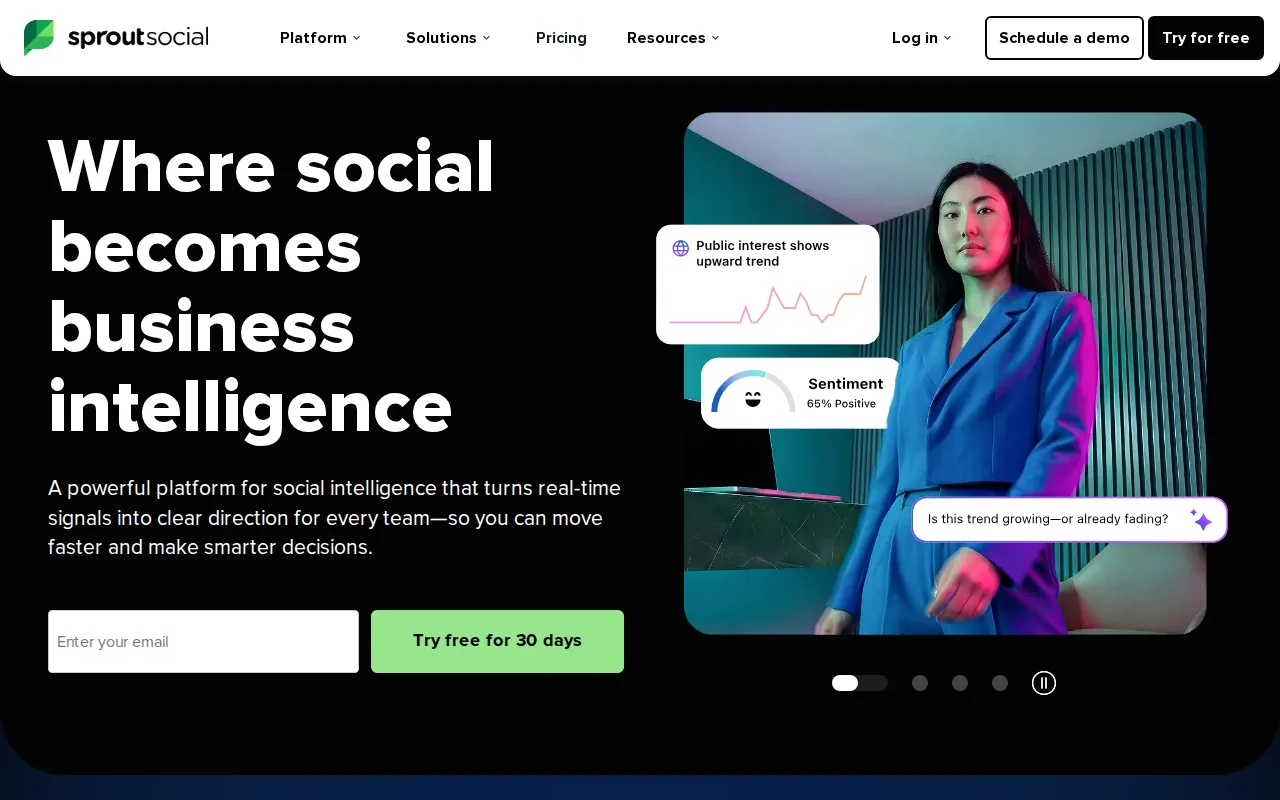
Review management, listening, sentiment analysis, competitor and paid insights, and an API on the top tier. For an organisation with a social customer care function and compliance requirements, the reporting and permissions justify the cost.
Pros:
- Listening and sentiment analysis at a depth nothing cheaper on this page attempts
- Review management alongside social, which suits multi-location businesses
- Permissions and audit trails that satisfy compliance requirements rather than merely gesturing at them
- An API on the top tier for organisations wiring social into their own systems
Cons: Per-seat pricing at this level means a four-person team starts near $800 a month before anyone has posted anything. Nothing in the product helps a small business that simply needs posts to go out on time, and buying it for that reason is how software budgets get wasted.
For who: Enterprises with a social customer care function and a compliance requirement to satisfy.
Pricing: Essentials $79 per seat per month billed annually, $99 monthly. Standard $199 per seat, Professional $299, Advanced $399. Read 7 August 2026.
What social media automation can and cannot do
It cannot invent your point of view. Every tool on this list will schedule an empty calendar just as reliably as a full one. The production step is the one that stalls, which is why blog automation tools and social scheduling belong in the same conversation.
Automation and engagement are different products. Publishing tools and inbox tools overlap in marketing copy and diverge sharply in practice. Decide which you are buying before you compare prices, and if you only need the publishing half, our shortlist of social media scheduling tools is the narrower comparison. Our comparison of social media scheduling software covers the publishing half on its own.
Per-user pricing is the hidden cost. Hootsuite, Agorapulse and Sprout Social all bill per user or per seat. A tool at $99 is $396 for a team of four. Sendible and Planable include unlimited users, which is often the deciding factor.
Recycling only works on evergreen content. SocialBee's category system is excellent for advice that stays true and dangerous for anything with a date, a price or a product name in it.
Analytics parity is a myth. Most schedulers report reach and engagement. Very few connect that back to traffic or revenue, so keep expectations at the level of what the tool can actually see.
FAQ
What is the difference between social media automation and scheduling? Scheduling puts a post live at a chosen time. Automation covers the wider workflow: generating posts, queueing and recycling them, routing replies and reporting. Most tools sold as automation are mainly schedulers.
Is there a genuinely free social media automation tool? Yes. Metricool, Buffer, Publer and Pallyy all have free plans that do real work. Metricool's is the most generous for analytics, Buffer's for straightforward posting. What those free plans can and cannot do on a schedule is covered in our guide to automated social media posting.
Which tool is best for an agency? SocialPilot for value, Sendible for unlimited users and white label, Agorapulse when client engagement volume is high. Compare on total cost including users, not the headline price.
Can these tools write the posts for me? Most now include an AI assistant that will draft a caption from a prompt. That is different from a system that turns your existing published content into a month of native posts, which is the specific job Distribb does.
Does automating social media hurt reach? Posting through a third-party API has not carried a meaningful penalty on the major networks for years. What does hurt reach is identical copy across every platform, which is a content decision rather than a scheduling one.
How many tools do I actually need? Usually two: something that produces content and something that publishes and monitors it. Buying one tool to do both well is rare, and paying for two mediocre ones is worse than paying for one good one in each half.
What should I check before committing to an annual plan? Whether the price is per user, per channel or per plan, whether the social inbox and analytics are included or add-ons, and whether your specific networks are supported on the tier you are buying. Those three catch most billing surprises.
Is it safe to let a platform repost evergreen content automatically? Recycling genuinely evergreen posts works and is one of the better uses of automation. Recycling everything on a fixed schedule teaches your audience to ignore you, so mark which posts are eligible rather than turning it on globally.
How do I measure whether the automation is paying for itself? Compare hours saved a week against the subscription, then check that reach and replies did not fall after you switched. A tool that saves four hours and halves your engagement is not a saving.
Where to start
If your posts go out late, buy a scheduler. Buffer at $5 a channel or Metricool's free plan will tell you within a fortnight whether that was the real problem.
If the calendar is empty because nobody has written anything, scheduling software will not fix it. Distribb writes the articles, publishes them to your site, and turns each one into native posts for every platform you use, ready to review in a drafts queue. Three-day free trial, and it sits alongside whichever scheduler you already pay for rather than replacing it.